Google Play Games on PC India Setup Guide: Requirements, Sync, and Game Support
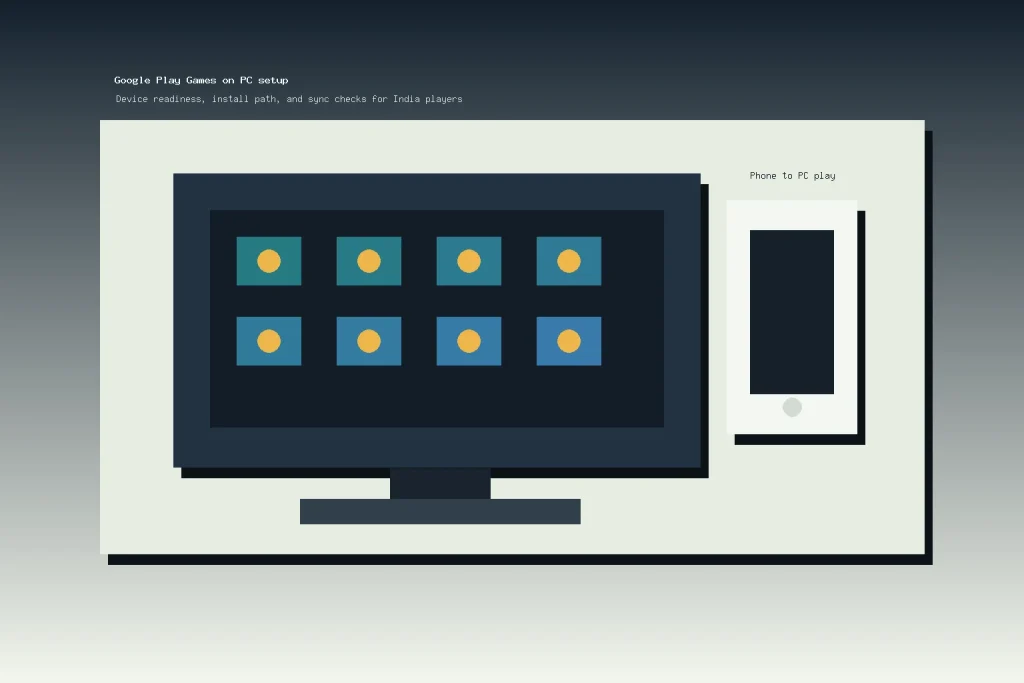
Google Play Games on PC is worth checking if you play Android games on your phone but want a larger Windows screen, keyboard and mouse input, and progress that can move between devices. For India players, the first decision is not whether the installer exists. Google lists India as a supported country, but the useful question is whether your account, PC, and preferred games are actually ready.
This guide explains the official setup path, the minimum requirements, how sync works, and what to verify before you rely on a PC install for daily play. It is based on official Google documentation and is written as an independent player guide, not as Google support or a guarantee that every mobile game will run well.
Quick Verdict
Use Google Play Games on PC if your Windows machine meets the official requirements, you already use a personal Google Account for Android games, and your main games are listed as compatible inside the PC catalog. Skip or delay it if your PC uses older storage, virtualization is disabled or managed by someone else, or your favorite game does not show PC support.
- Best fit: Android players who want a bigger screen for compatible games without moving to an unofficial emulator.
- Main limitation: game availability, progress sync, purchases, and performance vary by game and device.
- India relevance: India appears in Google’s supported country list, but your Play country and account eligibility still matter.
What Google Play Games on PC Does
Google describes the service as a way to play selected Android games across mobile and PC. The official Google Play Games on PC page focuses on a shared game library, progress sync for supported games, Play Points, and PC access for compatible titles. That makes it different from downloading a random APK or using an unofficial emulator: the player starts from Google’s own PC catalog and signs in with a Google Account.
The practical benefit is simple. A phone game that works well in short sessions may be easier to play on a laptop or desktop when you want a larger screen, stable desk controls, or longer sessions at home. The practical risk is also simple: not every Android game is in the PC catalog, and not every feature from the phone version should be assumed to transfer perfectly.
India Availability and Account Fit
Google’s requirements page lists India under country or region availability for Google Play Games on PC. That is a useful green light for Indian players, but it is not the same as saying every Google account, device, or game is eligible. The same official help page says players need a personal Google Account and a Play country set to a supported country or region.
Before you install, confirm three account points: you can sign in to the same Google Account on mobile and PC, your Play country is correct, and the game you want to play appears in the PC catalog. If a family member or office administrator manages the Windows device, also check whether you have permission to install software and enable virtualization settings.
PC Requirements to Check First
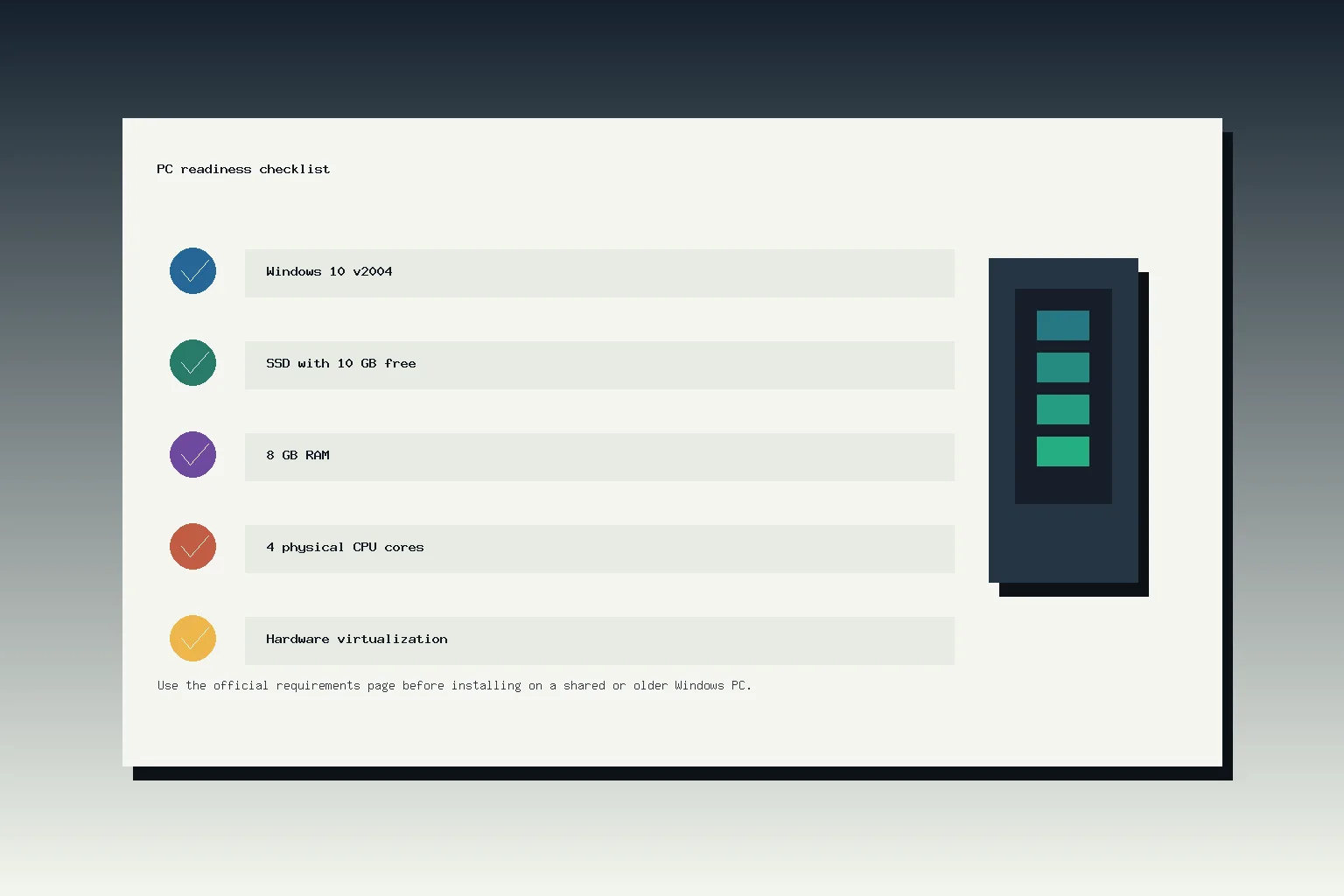
The official Google Play Games on PC requirements page is the source to use before downloading the installer. Google’s listed minimums include Windows 10 version 2004, an SSD with 10 GB of available storage, 8 GB of RAM, Intel UHD Graphics 630 or comparable graphics, 4 physical CPU cores, a Windows admin account, and hardware virtualization turned on.
| Check | Why it matters |
|---|---|
| Windows 10 v2004 or newer | The PC client is built for supported Windows versions, not older Windows installs. |
| SSD with 10 GB free | Google lists SSD storage as a requirement, so an old hard drive is a weak starting point. |
| 8 GB RAM and 4 physical CPU cores | These are minimums, not a promise of smooth play for every game. |
| Intel UHD 630 or comparable graphics | Graphics capability affects whether games run well and what warnings appear. |
| Hardware virtualization | The installer or app may require virtualization and Windows Hypervisor Platform settings. |
If your machine is close to the minimum, treat the install as a test rather than a migration. Google notes that games may show performance warnings and that catalog filtering can help hide games that may not run well on your PC. For many India players using budget laptops, the SSD and virtualization checks are the two points most likely to decide whether setup is smooth.
Safe Setup Path
The official install and setup page starts from play.google.com/googleplaygames, then asks users to download and run the installer. During setup, Google says Windows virtualization settings may need to be turned on. If Windows Hypervisor Platform is currently off, the installer may ask you to enable it and restart.
Do not download a “Google Play Games PC” installer from random APK mirrors, file-sharing pages, or lookalike domains. The simplest player rule is to begin at Google’s own page, check requirements, and stop if the installer says your PC is missing a requirement. If you later need to remove it, use Windows Apps and Features rather than deleting folders manually.
Sync, Purchases, and Game Support
Cross-device play is the main reason to consider the PC version. Google says players should sign in with the same account on mobile and PC, and the product page says library and progress sync are available for selected games on compatible devices. The selected-games caveat matters. A game can be available on Android without being useful on PC, and a paid title or in-game purchase may have its own rules.

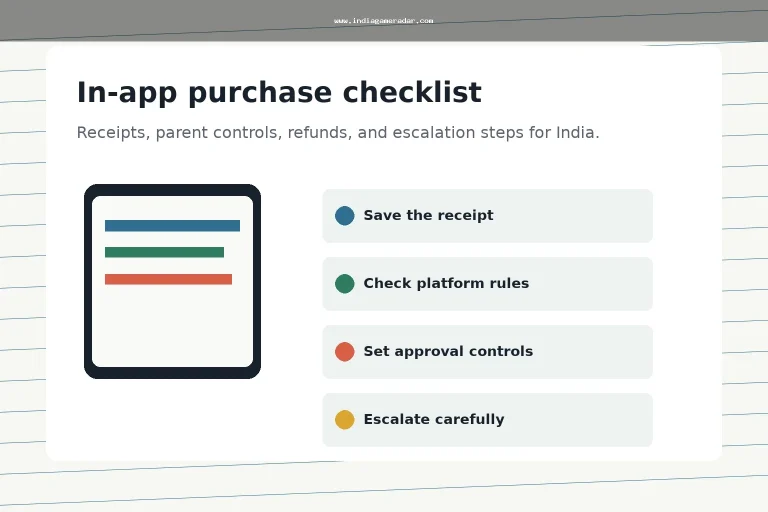
Before you spend money in a game you plan to use across phone and PC, read the store listing and in-game payment screens carefully. Our gaming app in-app purchase checklist explains receipt and refund evidence to save, while the AutoPay and subscription cancellation guide is useful if a game or service uses recurring billing. For privacy labels and permissions, use the gaming app data safety guide before adding a new game to a shared PC.
Player Checks Before Daily Use
After installation, test one game at a time. Open the game on mobile first, confirm your account and progress, then open the same game on PC. Check whether saves, achievements, currency, friends, controls, and in-game purchases appear as expected. If anything looks different, stop before buying items or changing account settings from the PC client.
Also watch for control quality. Keyboard and mouse input can be an advantage in some games, but mobile-first games may still feel awkward if their PC control profile is limited. If a game relies on touch gestures, tilt controls, or fast chat actions, spend a few minutes in a non-ranked or low-risk mode before playing seriously.
Who Should Wait
You should wait if your PC does not meet the minimum requirements, if you cannot enable virtualization, if you share the computer with someone who controls admin settings, or if the game you care about is not available in the PC catalog. You should also wait if you are using the PC only to bypass app-store rules, payment limits, age controls, or account restrictions. Those are account and platform issues, not setup shortcuts.
For most eligible players, the best approach is modest: install from the official source, test one compatible game, confirm sync, then decide whether PC play actually improves your routine. A larger screen is useful only when the game, controls, and account setup all support the way you play.
Yes. Google’s official requirements page lists India in the country or region availability list, but account eligibility, Play country, device requirements, and individual game support still matter.
Google lists Windows 10 v2004, an SSD with 10 GB available storage, 8 GB RAM, Intel UHD Graphics 630 or comparable graphics, 4 physical CPU cores, a Windows admin account, and hardware virtualization turned on.
No. Google describes progress and library sync for selected games on compatible devices. Check the PC catalog and test your game before relying on sync for purchases, currency, ranked play, or long sessions.
No. Start from Google’s official Google Play Games on PC page or Google Play Help setup path. Random installer mirrors can add account, malware, or version risks that are not worth it.
Written by
Nisha Rao
Payments and Safety Editor
Nisha Rao covers payment notes, KYC guidance, account-safety topics, app usability, and responsible gaming context. She focuses on helping readers understand public information without treating gaming as income or financial advice.
- Expertise
- UPI and wallet notes, KYC explainers, app safety checks, responsible gaming tools, and reader correction review.
- Review scope
- Reviews payment guidance, KYC notes, safety language, responsible-use sections, and correction evidence.