Mobile Game Accessibility Settings India: Captions, Touch Controls, Motion, and Color Checks
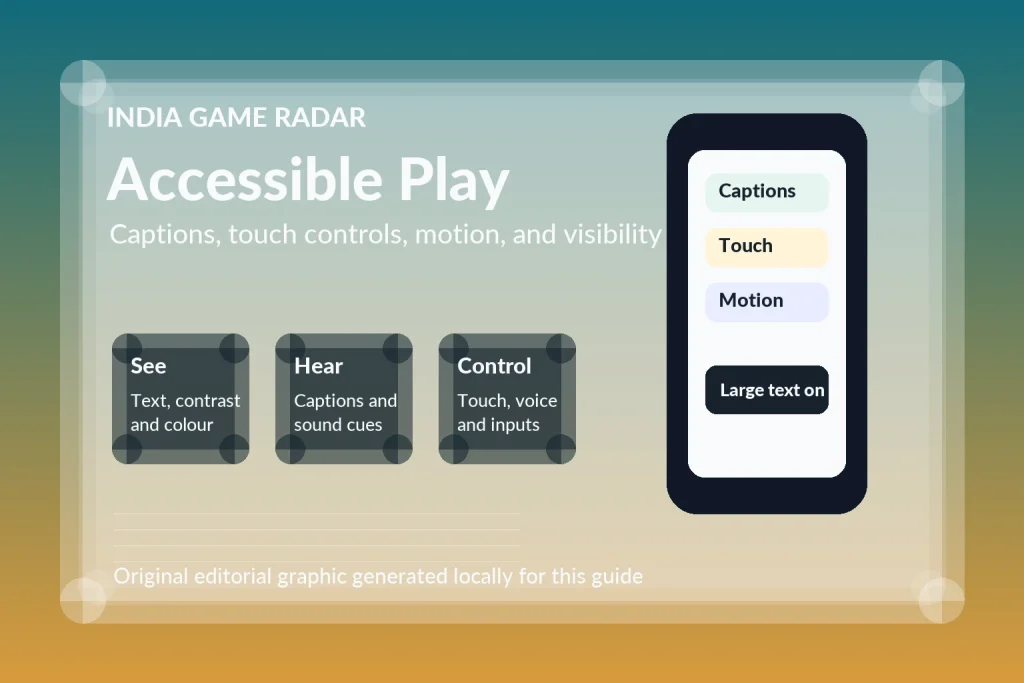
Mobile games are not only about graphics settings or frame rate. For many players in India, a better session starts with readable captions, controls that do not punish small mistakes, fewer motion effects, and permission settings that match how the game is actually played. This guide is for Android and iPhone players who want a practical accessibility pass before longer sessions.
The short version: do not change every setting at once. Start with the problem that interrupts play most often: small text, missing audio cues, thumb reach, motion discomfort, or voice-chat permissions. Official Android guidance groups accessibility features around vision, hearing, mobility, voice, and cognitive support through Android accessibility features. Apple similarly groups iPhone settings around vision, hearing, mobility, speech, and cognitive accessibility through iPhone accessibility features. The exact menu names can vary by phone model, OS version, region, and game support, so use this as a settings map rather than a guarantee.
Quick Verdict
If you play shooters, RPGs, puzzle games, cricket games, or cloud-streamed titles on a small screen, accessibility settings are worth checking before performance tweaks. Captions and display changes help when game text is tiny. Touch and controller settings help when thumb reach or repeated gestures are the issue. Motion settings help when menus, camera swings, or transitions make a session uncomfortable. Permission checks matter when voice chat, Bluetooth controllers, camera features, or local-network play are part of the game.
This is not a privacy checklist. Permissions appear only where they affect play, such as microphone access for voice chat or Bluetooth access for controllers. For battery and frame-rate tuning, use our mobile game performance settings guide.
Start With The Problem That Breaks Play
Before changing settings, play one short casual round and write down what actually went wrong. If you missed dialogue or alert sounds, start with captions and hearing settings. If you mis-tapped buttons, start with touch controls, controller support, and button layout inside the game. If you felt eye strain, start with display size, contrast, colour, brightness, and motion. If party chat failed, check microphone permissions and in-game voice settings instead of changing unrelated privacy controls.
- Small text: increase display size, check caption style, and inspect in-game UI scale if the game offers it.
- Audio dependence: enable captions where supported and keep sound effects separate from music when the game allows it.
- Input strain: review touch accommodations, sensitivity, controller support, and one-handed reach.
- Motion discomfort: reduce heavy animations at OS level and inside the game where possible.
Android Settings To Check First
On Android, begin in Settings > Accessibility. Google notes that feature names and navigation can vary by device and market, which matters in India because players use a wide range of Android phones. Useful starting points include display size, magnification, colour correction, high-contrast text, Select to Speak, TalkBack, Switch Access, Voice Access, Live Transcribe, and accessibility shortcuts.
For games with spoken instructions, cutscenes, or voice-heavy tutorials, Android’s Live Caption can help on supported devices and languages. It is not a substitute for game-provided captions, and it may need a first-time language-pack download over Wi-Fi. For games that already provide captions, Android caption preferences can help adjust caption size, colour, and background style, but Google warns that preferences may not work with every media app.
iPhone Settings To Check First
On iPhone, start in Settings > Accessibility. Apple groups features across vision, hearing, mobility, speech, and cognitive accessibility. For mobile games, the most useful areas are usually Display & Text Size, Motion, Subtitles & Captioning, Touch, Spoken Content, and Accessibility Shortcut. If you share the phone with a child or family member, keep Screen Time and purchase controls separate from accessibility settings so you do not make the game harder to use while trying to manage spending or app access.
For visibility, look for larger text, bold text, contrast, colour filters, and zoom or magnification options. For motion comfort, Apple’s Motion settings can reduce some screen movement, transitions, animations, animated images, and related effects. This may not override animation inside every game, but it is a useful first step if menu transitions, ad screens, or fast UI effects are the issue.
Captions, Colour, And Readability
Captions are most useful when they are readable during actual play, not only in a settings menu. Open a practice mode, tutorial, replay, or low-stakes match and check whether captions sit behind buttons, clash with the game’s colour palette, or disappear too quickly. Puzzle games and RPGs often depend on tutorial text. Shooters and battle royale games often depend on sound cues. Sports games may use commentary, referee cues, and menu prompts. If the game has its own caption size or UI scale, use that first, then use OS-level text and caption settings as a second layer.
Colour changes need the same practical test. A setting that makes the home screen clearer may make a game’s rarity colours, enemy markers, or pitch indicators harder to read. Check the lobby, a live match, the inventory screen, and the purchase confirmation screen before deciding that a colour filter works.
Touch, Controller, And Motion Comfort
Touch comfort starts inside the game. Look for button size, layout, sensitivity, camera speed, aim assist, tap-to-move, one-handed mode, gyro controls, vibration, and haptics. If the game supports an external controller, compare it with your touch layout rather than assuming it is automatically better. Our mobile game controller setup guide covers Android, iPhone, Xbox, and PlayStation controller pairing checks in more detail.
Motion comfort is personal. Some players are fine with fast camera swings but uncomfortable with animated menus. Others only notice discomfort during long bus or metro rides. Reduce motion at OS level, then check the game for camera shake, motion blur, screen shake, field-of-view, and vibration settings. Do not judge the setting from the lobby alone; use a short match or training room because camera movement is different during play.
Permissions That Affect Accessibility
Permissions are supporting checks here, not the main story. Microphone access can matter for voice chat. Bluetooth can matter for controllers or audio devices. Camera access can matter for AR games or profile features. Local-network access can matter for some multiplayer, streaming, or companion-device features. If a game asks for a permission, ask what play feature needs it. If you do not use that feature, deny or turn it off and test whether the game still works for your use case.
For voice chat or social play, combine permission checks with notification controls. If interruptions are the bigger issue, pair this with our mobile game notification settings guide.
A 10-Minute Test Before You Keep The Settings
- Open the game on Wi-Fi and check the lobby, settings page, and one tutorial or practice mode.
- Read the smallest menu text you normally use: store labels, event missions, inventory counts, or quest descriptions.
- Play one low-stakes round and note missed taps, missed captions, motion discomfort, or sound-cue problems.
- Change one setting group only: captions, display, touch, motion, controller, or permissions.
- Repeat the same round or practice mode and keep the change only if it solves the original problem without creating a new one.
The goal is a phone and game combination that lets you play with less friction.
FAQ
No. Android settings can help with display, captions, magnification, touch, and input support, but individual games and device makers decide how much they support. Test the setting inside the game before relying on it for ranked or paid play.
Start with the problem you feel most often. Use Display and Text Size for readability, Subtitles and Captioning for supported video or spoken content, Motion for animation discomfort, and Touch for input difficulty.
Only if you actually use voice chat or another feature that needs the microphone. Android and iPhone both let you review app permissions later, so you can deny access, test the game, and enable it only when the feature is needed.
Written by
Aarav Mehta
Senior Betting Games Editor
Aarav Mehta writes and reviews game-rule explainers, fantasy sports guides, cricket betting context, and strategy notes for adult readers in India. His work focuses on explaining rules, risk, limits, and public platform terms in clear language.
- Expertise
- Cricket betting context, fantasy sports rules, casino game explainers, betting strategy basics, and responsible-use reminders.
- Review scope
- Reviews game rules, strategy articles, bonus-term explanations, and public-source updates before publication.