Mobile Game Controller Setup India: Android, iPhone, Xbox, and PlayStation
A mobile controller is worth setting up only if it solves a real play problem: tighter aiming, better racing control, longer cloud-gaming sessions, or less screen clutter. For Indian players, the practical choice is usually between pairing a Bluetooth controller with an Android phone, using an Xbox or PlayStation controller with iPhone or iPad, or testing a controller inside a streaming app before buying a dedicated mobile grip.
This guide focuses on setup and decision points, not generic safety advice. It uses public platform support pages checked on 8 June 2026 and keeps compatibility claims qualified because controller support depends on the phone, operating system, controller model, app, and game.
Quick Verdict
If you already own a recent Xbox Wireless Controller, DualShock 4, or DualSense controller, pair it with your phone before buying a separate mobile gamepad. The first test should be simple: pair the controller, open a supported game or cloud-gaming app, check whether the buttons map correctly, and play for ten minutes to judge input delay and comfort.
For Android players, the most important checks are Bluetooth pairing, game-level controller support, Android version, and whether the phone case or grip blocks charging or cooling. For iPhone and iPad players, Apple has official controller support pages, but individual games still decide which buttons and features work. For PlayStation owners, Remote Play has separate network and controller requirements, so use our PS Remote Play India setup guide alongside this controller guide.
Before You Pair Anything
Start with the game, not the controller. Some games support controllers fully, some support them only in matches, and some ignore controller input entirely. Prioritise games where precision, camera control, or long sessions are the reason you want a controller, then verify support inside that specific game. Menu-heavy casual games may still be faster with touch controls.
Next, check the controller path. A standard Bluetooth controller is cleaner for quick setup, while USB-C can reduce charging anxiety and may be more stable on some devices. A clip or telescopic grip matters if you play in bed, on trains, or during long sessions, but do not buy the grip before confirming the game actually recognises the controller.
Battery and heat also matter because a controller will not fix frame drops on a phone that is already running hot. Lower graphics settings, remove a thick case, and avoid charging while playing demanding games if the device already shows heat or throttling during normal touch play.
Android Setup Flow
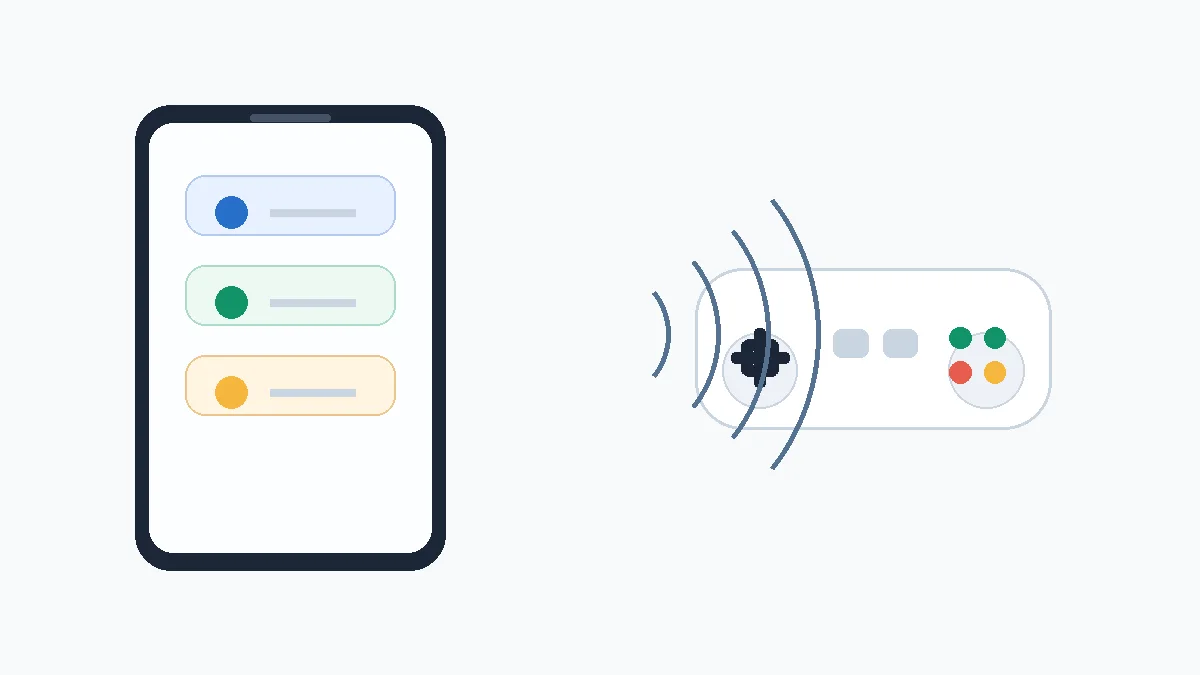
On Android, put the controller in pairing mode first, then open Bluetooth settings and add it as a new device. Google’s Android Help explains the general Bluetooth path through Quick Settings or the Settings app, including Pair new device and reconnecting saved devices through the Bluetooth list: Android Bluetooth setup.
After pairing, open the target game and look for a controller, gamepad, or input section in settings. If the game has no controller menu, test movement, camera, pause, and shoulder buttons in a short offline mode or tutorial. Do not assume a successful Bluetooth connection means the game supports every input.
If the controller connects but does not work inside a game, try three fixes before blaming the controller: restart the game after pairing, remove and pair the controller again, and check whether the game supports controllers only in specific modes. For cloud gaming, test both Wi-Fi and mobile data because input delay can feel worse than the button mapping itself.
iPhone And iPad Setup Flow
Apple’s India support page says wireless Xbox, PlayStation, and other Bluetooth game controllers can connect to iPhone, iPad, Apple TV, Mac, or Apple Vision Pro, with the same broad flow: put the controller into pairing mode, open Bluetooth settings, and select the controller from nearby devices. Use Apple’s support page for the platform-specific starting point: Apple wireless game controller setup.
Apple’s Xbox controller page lists the Xbox button plus Connect button flow for supported Xbox controllers, while Apple’s PlayStation controller page lists PS plus Share for DualShock 4 and PS plus Create for DualSense. Apple also notes that button customisation and feature support vary, so treat the first game test as part of setup, not as an afterthought.
Apple Arcade players should test controller support inside the specific game they want to play. If you are deciding whether the subscription itself makes sense, compare this guide with our Apple Arcade India guide before treating controller support as the only deciding factor.
Xbox And PlayStation Controller Notes
An Xbox controller is a sensible first test if you already own one or plan to use it with cloud gaming, especially if you already follow our Xbox Cloud Gaming India guide. Keep the claim modest: the limitation is not only pairing; it is whether the game or streaming service maps the controller well on your device.
PlayStation controllers make the most sense when your use case is Remote Play or a game that clearly supports them, but the details matter. PlayStation’s DualSense support page says the controller can connect to supported Android and iOS phones through Bluetooth or USB-C, while also warning that some features are unavailable on mobile devices: DualSense mobile pairing support.
That means adaptive triggers, haptics, audio jack behaviour, and built-in microphone support should not be assumed on a phone. Judge the controller by the game you actually play. A DualSense may feel excellent in Remote Play, while a simpler Bluetooth controller may be enough for racing or arcade games.
Best Testing Order
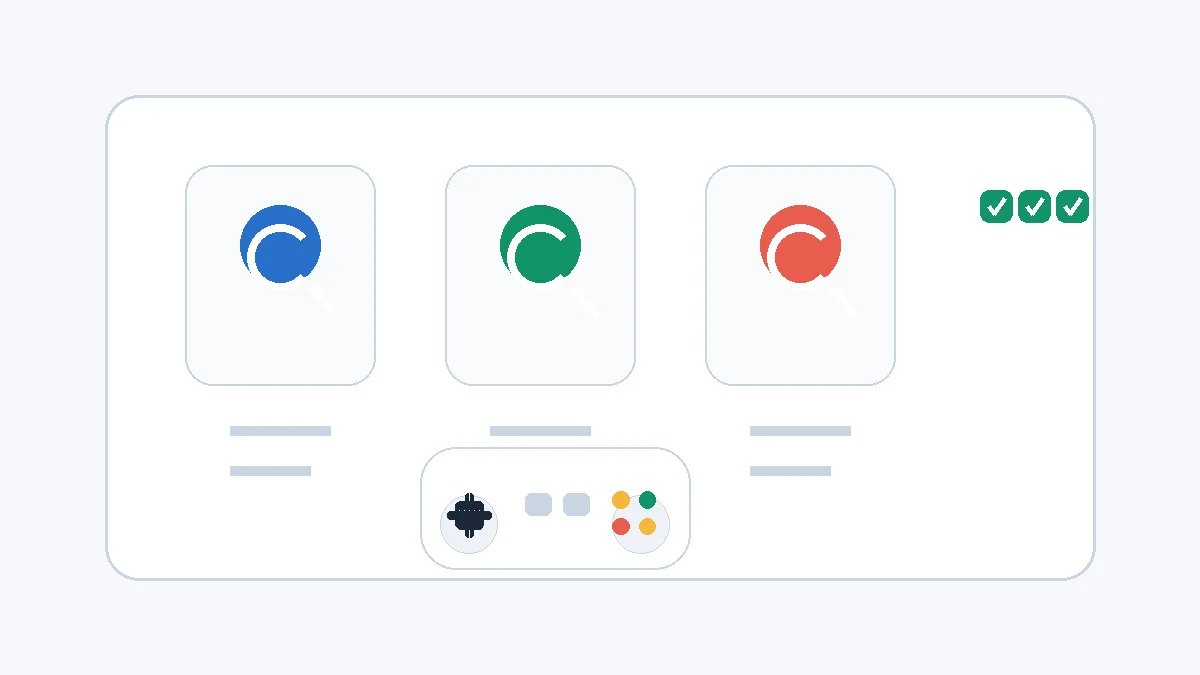
- Pair the controller at the operating-system level and confirm it appears as connected.
- Open one game that is known to support controllers, then test movement, camera, triggers, menu, and pause.
- Test the same game for ten minutes on Wi-Fi and, if relevant, mobile data.
- Check whether the phone grip blocks cooling, volume buttons, USB-C charging, or headphone access.
- Only then decide whether to buy a clip, telescopic controller, longer USB-C cable, or spare controller battery pack.
Common Problems And Fixes
If the controller pairs but buttons do nothing, restart the game after pairing and check the game’s input settings. If only some buttons work, the game may not support the full layout. If Bluetooth delay is noticeable, move closer to the router, reduce other Bluetooth devices, and test a lower graphics mode before buying another controller.
If the controller keeps reconnecting to a console or PC, fully power it down before pairing with the phone. Some controllers remember multiple devices, but switching is not always obvious. Keep the controller firmware current where the maker provides updates, and keep the phone operating system updated if controller support is important to you.
A cautious buying path is better than buying only from an ad that shows console-style controls. Borrow a controller first if possible, test it with your top two games, and prefer a purchase route where you understand the return or exchange terms before opening the box. Comfort, game support, and stable connection matter more than the controller looking expensive.
No. Controller support depends on the game, operating system, controller model, and app. Pair the controller first, then test it inside the game before relying on it.
Many Bluetooth Xbox controllers can pair with phones, but support still depends on the controller model, phone software, and game. Test pairing and button mapping before buying a grip or extra accessory.
It can be useful for supported games and Remote Play, but some DualSense features are unavailable on mobile. Judge it by the specific game and device you plan to use.
Written by
Nisha Rao
Payments and Safety Editor
Nisha Rao covers payment notes, KYC guidance, account-safety topics, app usability, and responsible gaming context. She focuses on helping readers understand public information without treating gaming as income or financial advice.
- Expertise
- UPI and wallet notes, KYC explainers, app safety checks, responsible gaming tools, and reader correction review.
- Review scope
- Reviews payment guidance, KYC notes, safety language, responsible-use sections, and correction evidence.