PS Remote Play India Guide: Setup, Devices, Controllers, and Console Checks
A practical PS Remote Play India setup guide covering supported devices, console settings, controllers, mobile data cautions, and when it fits Indian players.
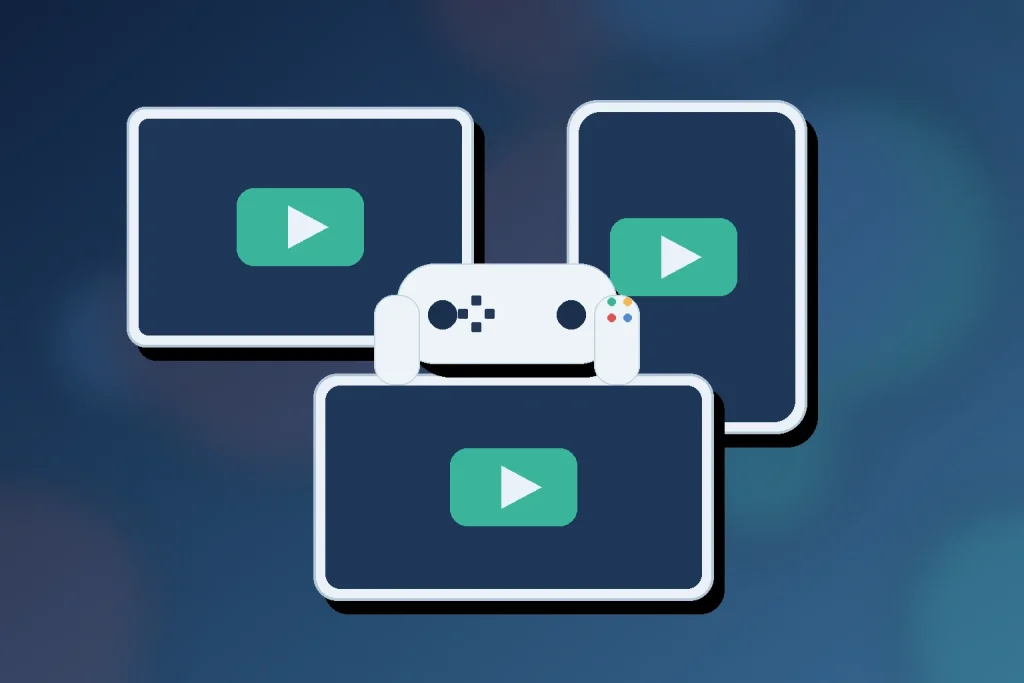
PS Remote Play is useful when the PlayStation console is in your home but the TV is not free, or when you want to continue a session on a phone, tablet, laptop, desktop, Android TV device, another console, or a PlayStation Portal. It is not the same as cloud gaming. Your own PS5 or PS4 still does the work, and the Remote Play app streams that console session to another screen.
For Indian players, the decision is practical: do you already have a PlayStation console, a stable home network, and a comfortable controller setup? If yes, PS Remote Play can be a good second-screen option. If you want games streamed from a service without owning a console, compare it with our Xbox Cloud Gaming India guide or JioGamesCloud review instead.
What PS Remote Play Does
PlayStation describes PS Remote Play as a way to stream PlayStation gaming from a PS5 or PS4 console to more screens. The official India page lists phones, tablets, laptops, desktops, Android TV devices, PS5 or PS4 consoles, and PlayStation Portal as supported destinations, depending on the exact setup. The important point is that Remote Play mirrors and controls your console; it does not create a separate subscription library or replace the console itself.
That makes it best for players who already keep a console connected at home and want flexibility. It is less attractive if your broadband upload is weak, your router is far from the console, or you mainly play competitive games where input delay matters.
Official PlayStation India guidance says Remote Play needs broadband internet with at least 5 Mbps, with 15 Mbps or more recommended for a better experience. It also warns that mobile data use can count against your plan and that quality varies by carrier and network environment. Treat those as baseline checks, not a promise that every Indian connection will feel smooth.
Check the official PlayStation India Remote Play page when you need the current device list and store download path.
Device And Account Checklist
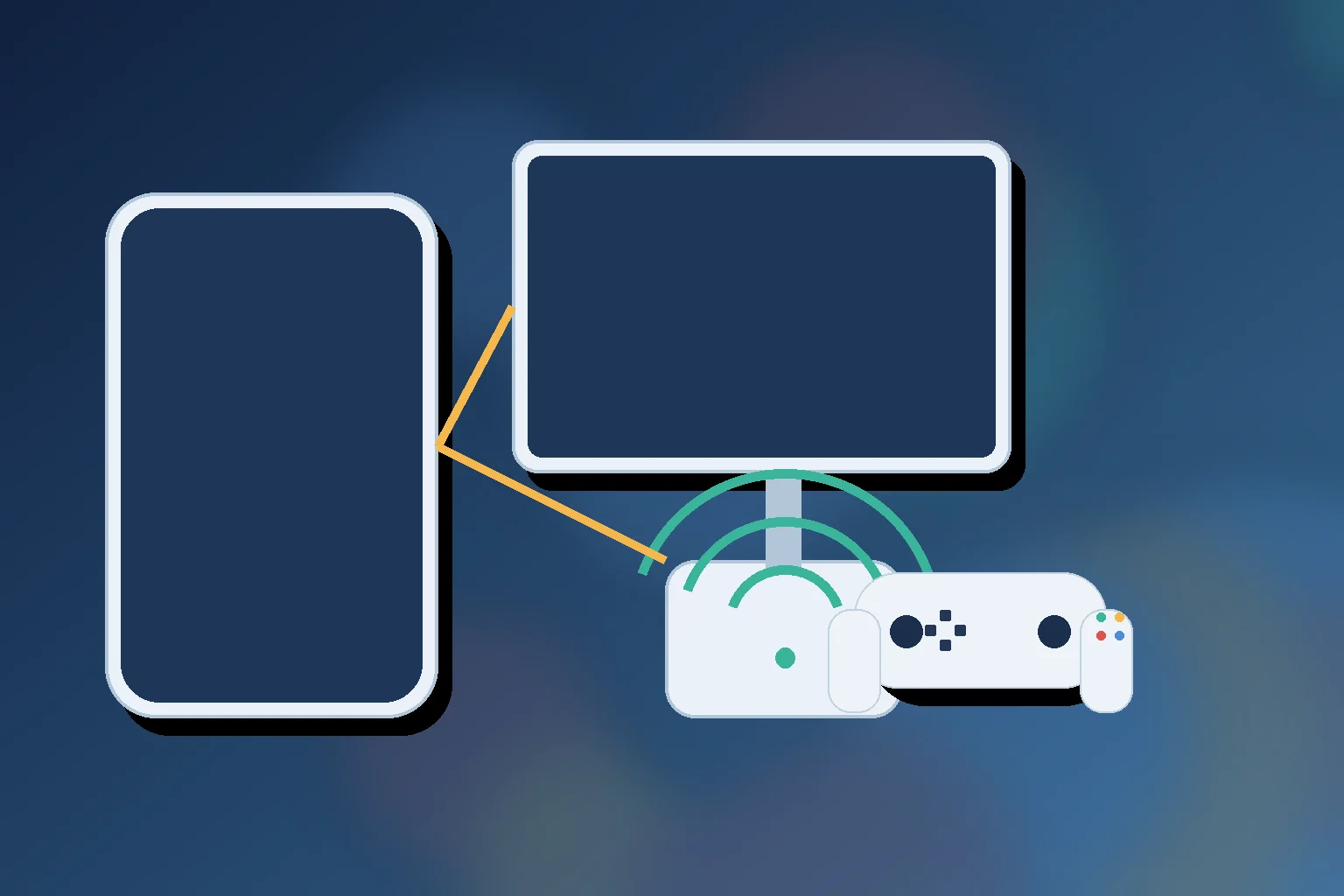
Start with the parts Remote Play cannot work without. You need a PS5 or PS4 console, an account for PlayStation, the PS Remote Play app on the second device, and a high-speed internet connection. The support pages also recommend keeping the console system software updated and using the same PlayStation account that you use on the console.
| Check | Why it matters |
|---|---|
| Console | A PS5 or PS4 is required; Remote Play streams from your console. |
| Account | Use the same PlayStation account on the app and console. |
| Network | PlayStation lists 5 Mbps as a minimum and 15 Mbps as a better target. |
| Device | Use the app on a supported phone, tablet, PC, Mac, Android TV device, or PlayStation device. |
| Controller | On-screen controls work on mobile, but a compatible controller is usually better for long sessions. |
For Android and iPhone users, the app-store listings are worth checking just before installation because controller and operating-system support can change. Google Play India identifies PlayStation Mobile Inc. as developer and lists on-screen controls plus DUALSHOCK 4, DualSense, and DualSense Edge support with Android-version limits. The India App Store lists the same developer, iPhone/iPad support, controller support, voice chat, and iOS or iPadOS requirements.
Setup Path On PS5 And PS4
The setup path is simple, but it should be done in the right order. First, update your console. Then sign in to the same PlayStation account on the console and the device where you plan to use the app. Install PS Remote Play from the official app store for that device. On PS5, PlayStation’s India support page says to go to Settings, then System, then Remote Play, and turn on Enable Remote Play.
- Put the console and second device on a stable network for the first setup.
- Enable Remote Play in the console settings before trying to connect.
- Open the PS Remote Play app and sign in with the same PlayStation account.
- If the console is not found automatically, use the Pair Device option shown in console settings.
- Test one lower-pressure game before relying on it for ranked, live-service, or reaction-heavy play.
For rest-mode play, check the console power-saving settings too. Remote Play is most useful when the console can remain reachable without the TV being on. If your console is fully shut down, offline, signed into another account, or blocked by a weak network path, the app may not connect reliably.
Use the official Remote Play settings page for the current PS5 and PS4 setting names before troubleshooting.
Controllers, Mobile Data, And Network Reality
Touch controls are fine for menu checks and slower games, but they are not ideal for most console games. A compatible DualSense, DualSense Edge, or DUALSHOCK 4 controller is the more realistic choice if you plan to play for more than a few minutes. On PC and Mac, Sony’s Remote Play documentation also describes controller and cable or Bluetooth requirements by platform, so check the exact page for the device you use.
In India, the issue is often not the download speed advertised by the broadband plan. Remote Play also depends on upload stability from the console side, Wi-Fi interference, router placement, and the route between the console and the second device. A 5 GHz Wi-Fi connection near the router usually feels better than an overloaded 2.4 GHz room-corner connection. If you use mobile data, keep PlayStation’s own data warning in mind and test a short session first.
Remote Play also changes which games make sense. Narrative games, racing practice, turn-based titles, and casual grinding are usually more forgiving. Competitive shooters, rhythm games, and ranked sports matches can expose delay faster. If your goal is Android gaming on a PC rather than console streaming, the Google Play Games on PC setup guide is a better comparison point.
Who Should Use It
PS Remote Play fits players who already own a PS5 or PS4, have a stable home network, and want a flexible second screen. It is especially useful for finishing a single-player session from a laptop, checking console menus without taking over the TV, or playing from another room with a controller.
It is not the right starting point if you do not own a PlayStation console, want a separate game catalog, or expect the same latency as sitting in front of the TV. It is also not a workaround for account, region, or store restrictions. Install only the official app, keep the console updated, and avoid third-party apps that imitate Remote Play branding or ask for unnecessary account access.
PlayStation’s mobile Remote Play support page is the best official reference for mobile requirements, supported controllers, data cautions, and the basic start/quit flow.
Quick Verdict
PS Remote Play is worth setting up if you already have a console and want a practical second-screen option in India. The app is free, the setup is official, and the supported device range is broad. The quality question is local: your console, router, controller, and mobile or broadband connection decide whether it feels like a convenience or a compromise.
Yes, PlayStation has an official India Remote Play page, and the PS Remote Play app is listed in Indian app stores. You still need a supported PS5 or PS4 console, PlayStation account, compatible device, and stable internet connection.
No. PS Remote Play streams from your own PS5 or PS4 console to another screen. It does not provide a separate cloud game library or remove the need for a PlayStation console.
PlayStation lists at least 5 Mbps broadband as required and recommends at least 15 Mbps for a better Remote Play experience. Real quality can still vary by router, Wi-Fi strength, mobile carrier, and network congestion.
You can use mobile data where supported, but PlayStation warns that Remote Play can use a lot of data. Indian players should test a short session first and watch their plan limits instead of assuming long sessions are cheap or stable.
Written by
Nisha Rao
Payments and Safety Editor
Nisha Rao covers payment notes, KYC guidance, account-safety topics, app usability, and responsible gaming context. She focuses on helping readers understand public information without treating gaming as income or financial advice.
- Expertise
- UPI and wallet notes, KYC explainers, app safety checks, responsible gaming tools, and reader correction review.
- Review scope
- Reviews payment guidance, KYC notes, safety language, responsible-use sections, and correction evidence.