Mobile Game Screen Recording India: Android, iPhone, Audio, and Clip Checks
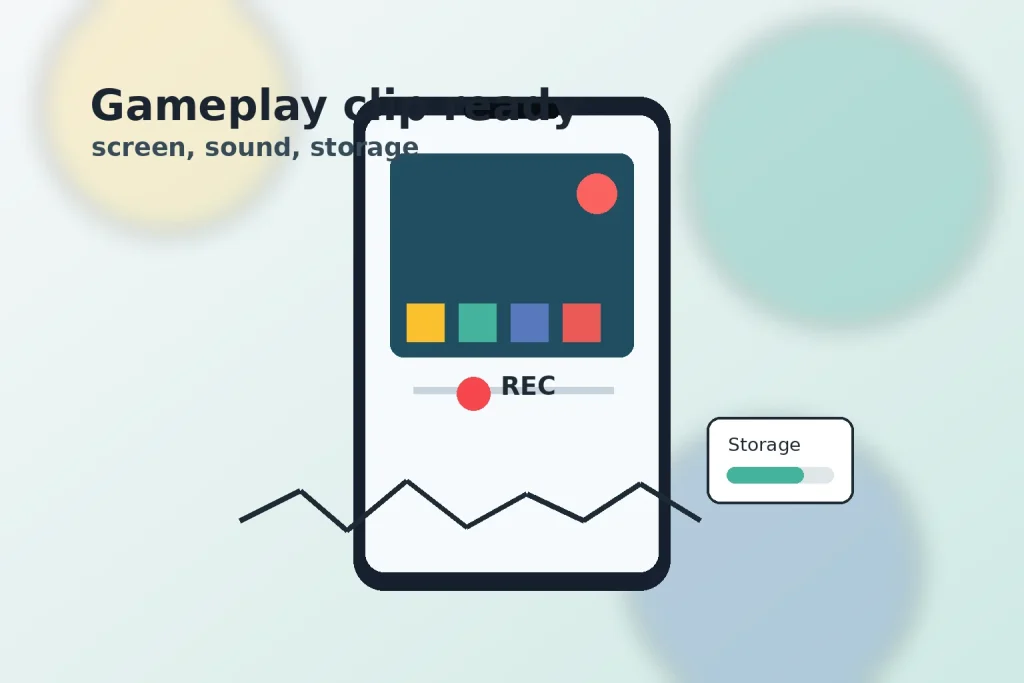
Recording a mobile game clip is simple only when the phone, game, audio, and storage are ready at the same time. For most Indian players, the best first choice is still the built-in Android or iPhone screen recorder: it avoids risky recorder APKs, keeps the workflow familiar, and gives enough quality for short highlights, bug evidence, tutorial clips, and casual sharing.
This guide is for gameplay clips, not a legal guide to streaming, copyright, or tournament rules. Before sharing a clip publicly, check the game rules, platform rules, and whether voice chat includes other people. If your goal is only to save a match highlight for friends, keep the setup lighter: stable storage, clear audio, and a short test recording matter more than installing another app.
Quick Verdict
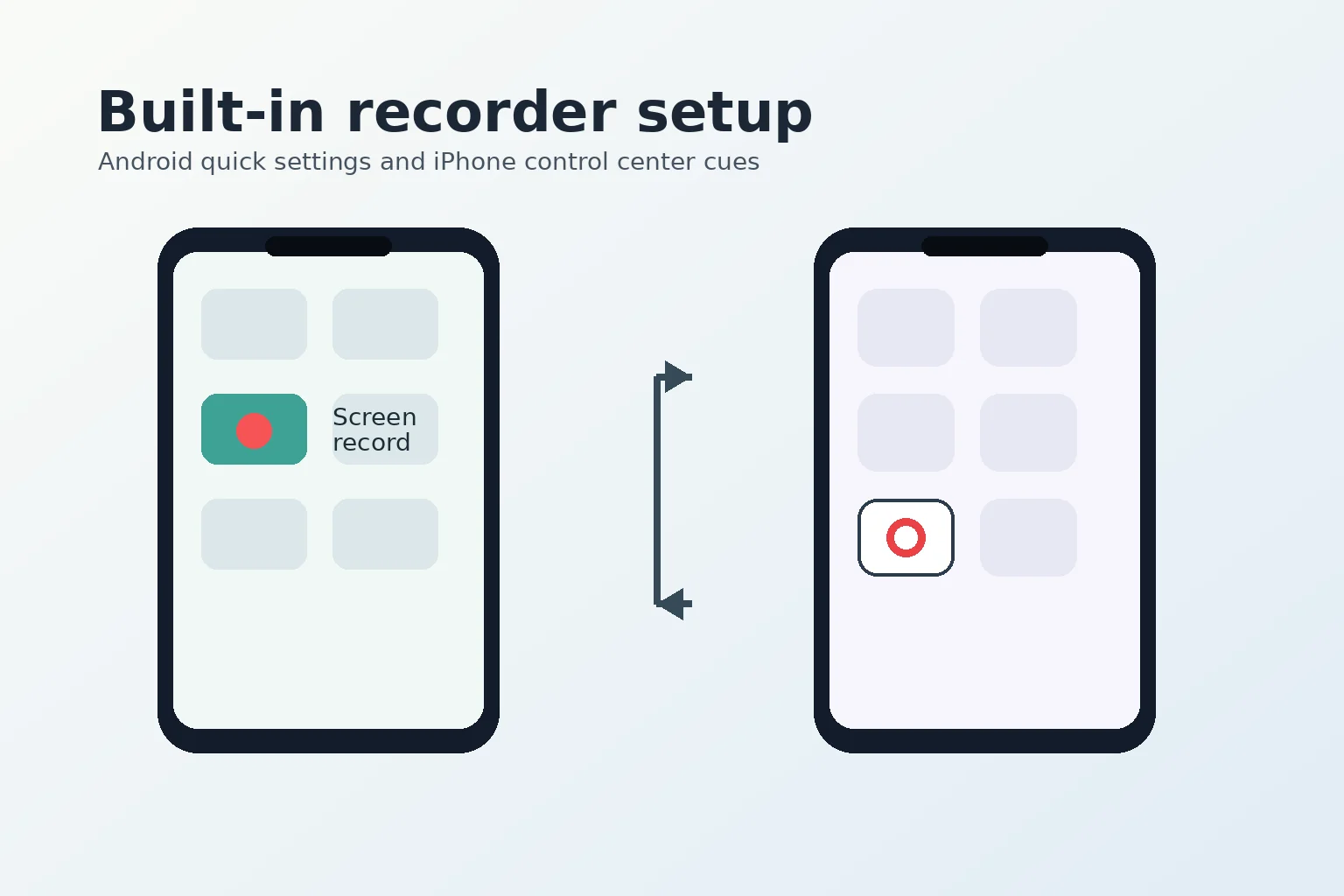
Use the built-in recorder first. Google documents Android screen recording through Quick Settings on supported versions, while Apple Support India documents Screen Recording through Control Center for iPhone. Start with those official paths, then add a third-party capture app only when you need a feature the phone cannot provide.
- For a short Android clip, open the game, swipe to Quick Settings, choose Screen record, select audio if available, and record a 15-30 second test before a full match.
- For iPhone, add Screen Recording to Control Center, decide whether microphone audio is needed, then start after the countdown.
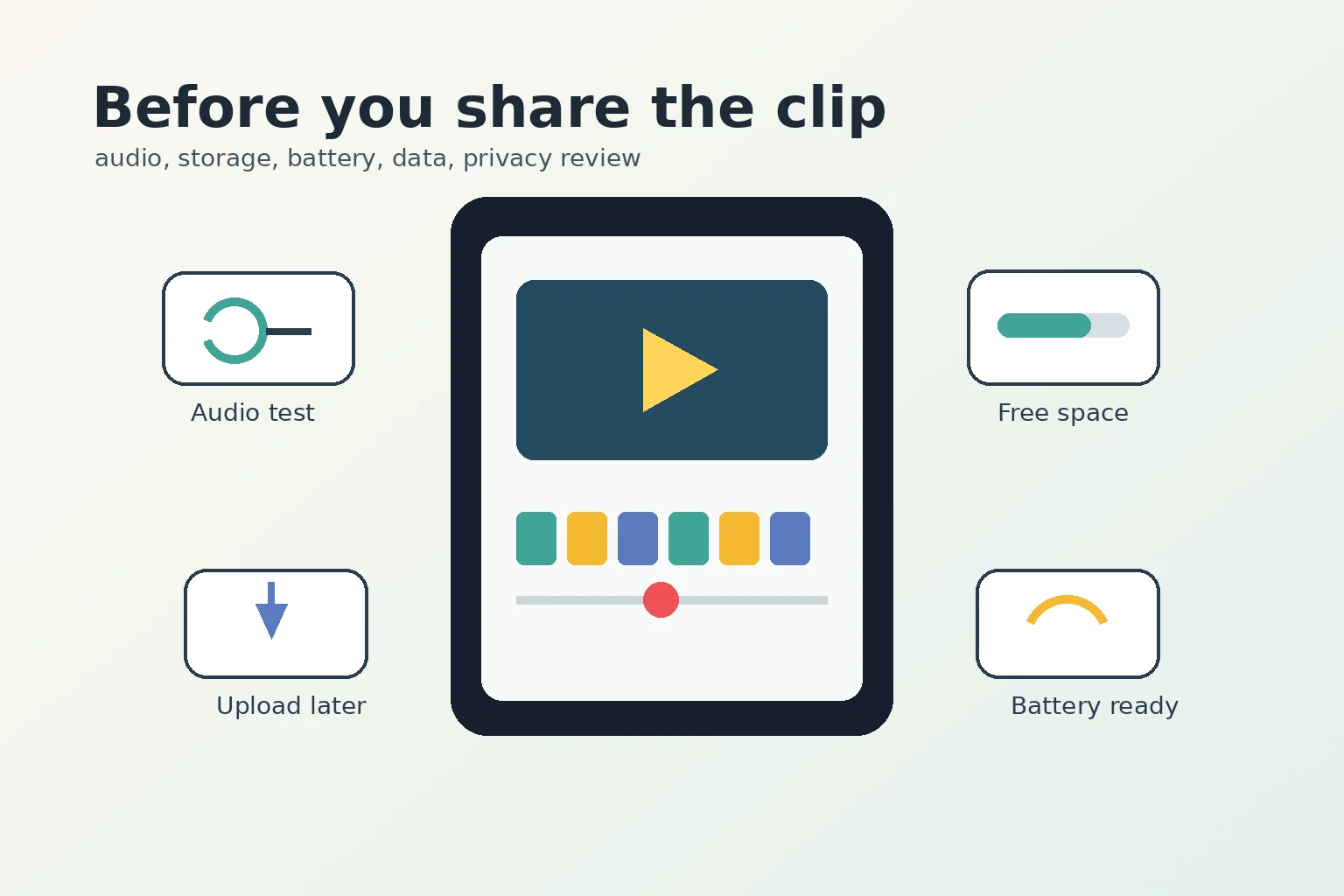
- For sharing or streaming, confirm storage, upload data, microphone privacy, and platform eligibility before the real session.
Choose The Right Capture Path
There are three common ways to capture gameplay. Built-in recording is best for quick clips and support evidence. A game’s own replay or highlight tool is better when the title offers clean camera angles or scoreboard views. A dedicated streaming or capture app makes sense only if you need overlays, chat widgets, or multi-platform live output.
If your phone is short on space, fix that before the match. A failed recording often comes from ordinary issues: not enough storage, an interrupted download, low battery, a permission prompt appearing mid-match, or a recorder using the wrong audio source. Our Mobile Game Storage Cleanup India guide is a useful pre-recording companion if your phone is already close to full.
Android Setup Checks
On Android, start with the official screen record path from Quick Settings. The exact tile location can vary by phone maker and Android version, so avoid assuming every model behaves exactly like a Pixel. If the tile is missing, search your phone settings for screen recorder, check the quick settings edit panel, or use the phone maker’s help page before installing an unknown recorder.
For gameplay, test three things before recording the real match. First, confirm whether the recorder can capture device audio, microphone audio, or both. Second, check that the game itself is not muting music, voice chat, or protected screens in recordings. Third, play back the test clip with earphones and speaker output so you know whether voice, game effects, and UI taps are understandable.
Use Android permissions deliberately. If a game or recorder asks for microphone or camera access, grant only what the feature actually needs and review the setting again after the recording session. Permissions should support the clip, not become a permanent habit for apps you rarely use.
Official reference: Google Android screen recording help.
iPhone Setup Checks
On iPhone, add Screen Recording to Control Center once, then use it whenever you need a clip. Apple’s guide notes that the iPhone can record what is happening on screen and can include microphone audio. That microphone option is useful for commentary, but it can also capture room audio, teammates, or background conversations, so run a short private test first.
If a clip has no game sound, check Silent mode, volume, Bluetooth output, and whether the game has its own audio toggles. If a clip has too much outside sound, record without microphone audio and add commentary later. For tutorials, a clean no-mic gameplay clip plus a separate voiceover is often easier to edit than a noisy live recording.
iPhone also lets users review app access to hardware features such as the camera and microphone under Privacy & Security. That matters when a recording workflow uses a game, a voice-chat app, and a sharing app together. Give each app only the access it needs for the recording you are actually making.
Official reference: Apple India screen recording help.
Audio And Voice Chat
Audio is the part most players notice only after a good match is over. Decide before the match whether the clip needs game sound, your microphone, party chat, or no audio. For ranked games and private lobbies, do not assume teammates want their voice posted publicly. If the clip is for a bug report or support ticket, game sound and visible steps may be enough.
Bluetooth headsets can complicate recording because the phone may route game sound, microphone input, and voice chat differently. If the clip matters, record one test with the headset connected and one test through the phone speaker. Keep the version that has clearer effects, callouts, and UI feedback.
Storage, Data, And Battery
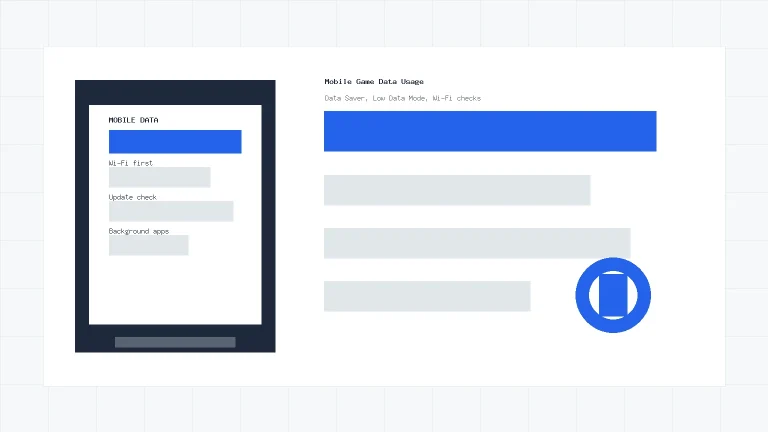
Screen recordings can grow quickly, especially when the game has fast motion. Keep enough free storage for the recording and the edited export. If the phone is also downloading updates, syncing cloud saves, or uploading clips, recording may stutter or stop. The checks in our Mobile Game Data Usage India guide can help you decide when to stay on Wi-Fi instead of using mobile data.
Battery is also part of clip quality. Start above low-battery range, close apps that are not needed, and avoid recording a long session while the phone is already hot. A short highlight is usually better than a long shaky recording that drops frames near the end.
Sharing Or Streaming
Saving a clip and streaming live are different tasks. A local clip lets you review, trim, mute, and delete before anyone sees it. A livestream sends mistakes, private notifications, and voice chat in real time, so use Do Not Disturb or Focus, hide private overlays, and test the account before going live.
YouTube lists current mobile live streaming requirements such as channel verification, no recent live-streaming restrictions, and subscriber and device requirements. Treat that as a status check, not a guarantee that your own channel is eligible. Official reference: YouTube mobile livestream help.
For accessibility, recording can be easier when captions, larger touch targets, and motion settings are already comfortable. If you are making tutorial clips for others, review the practical setup ideas in Mobile Game Accessibility Settings India before recording final footage.
Troubleshooting Checklist
- No screen record button: check Quick Settings or Control Center customisation before downloading a recorder app.
- No game audio: test device audio, microphone audio, headset routing, and the game’s own sound settings.
- Clip stops early: free storage, restart the game, close background uploads, and record a shorter segment.
- Laggy footage: reduce in-game graphics or frame rate for the recording session, then test again.
- Private information appears: crop, trim, blur, or rerecord before posting the clip publicly.
Final Recommendation
For most Indian mobile gamers, the safest workflow is practical and boring: use the built-in recorder, run a short test, keep enough storage free, check audio routing, and share only after reviewing the clip. That gives you usable highlights without turning a simple gameplay moment into an app-permission, storage, or live-streaming problem.
Start with the built-in screen recorder on your phone. Android and iPhone both have official recording paths, and they are usually enough for short gameplay clips, bug evidence, and casual highlights.
Common reasons include the wrong audio source, Bluetooth headset routing, muted game settings, microphone being off, or the game limiting captured audio. Record a short test clip before the real match.
Save a local clip first unless you specifically need a live audience. A saved clip lets you review audio, crop private notifications, trim mistakes, and confirm platform rules before sharing.
Written by
Nisha Rao
Payments and Safety Editor
Nisha Rao covers payment notes, KYC guidance, account-safety topics, app usability, and responsible gaming context. She focuses on helping readers understand public information without treating gaming as income or financial advice.
- Expertise
- UPI and wallet notes, KYC explainers, app safety checks, responsible gaming tools, and reader correction review.
- Review scope
- Reviews payment guidance, KYC notes, safety language, responsible-use sections, and correction evidence.