Mobile Game Storage Cleanup India: Android, iPhone, Downloads, and Updates
Practical Android and iPhone storage cleanup checks for Indian mobile gamers before large downloads, updates, or offloading unused games.
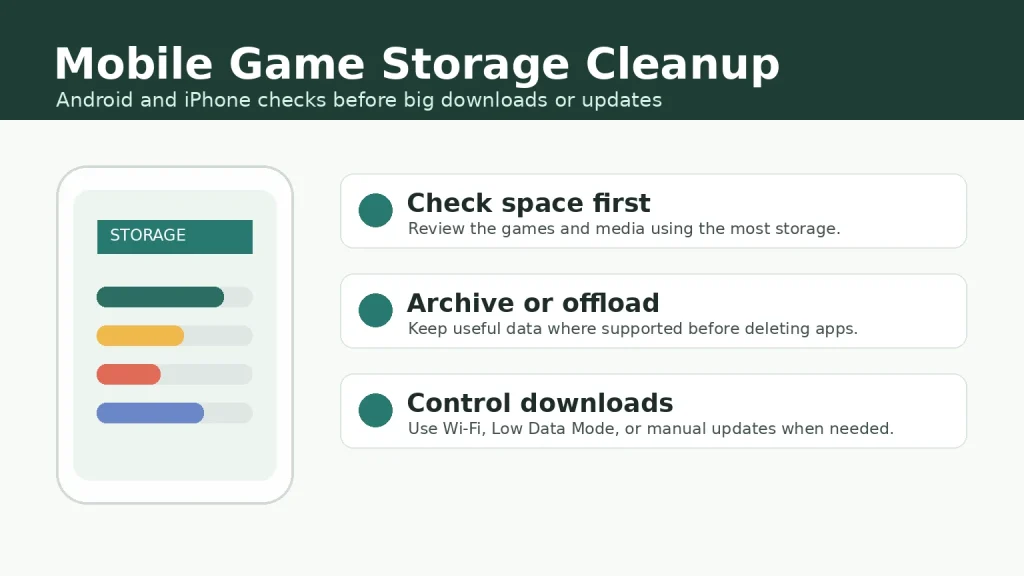
Quick verdict: most mobile game storage problems are easier to fix before the download fails. Check which games and media are using space, protect any cloud-save or account-linked progress, then decide whether to archive, offload, update on Wi-Fi, or remove old downloads. This guide is for Indian Android and iPhone players who rotate between large mobile games, cloud gaming apps, and subscription libraries.
The goal is not to make every phone faster with one setting. Storage cleanup can help when a game update needs room, when App Store or Google Play downloads are stuck, or when you are trying to avoid large cellular downloads. It will not fix every crash, ping issue, device heating problem, or game-side outage. Treat it as a practical pre-download routine.
Who this guide is for
Use this checklist if your phone is close to full, a game keeps asking for a large update, you move between Android and iPhone in the family, or you rely on prepaid data packs and want fewer surprise downloads. If your main worry is progress transfer rather than storage, first read our mobile game cloud saves guide; deleting the wrong local data can matter more than freeing a few GB.
- Good fit: casual players with several big games installed, parents managing shared devices, and players who update over Wi-Fi at home.
- Use caution: games with guest accounts, local-only progress, downloaded maps, or old event files that may not return after deletion.
- Not enough by itself: device overheating, server lag, payment issues, or account bans need different troubleshooting paths.
Start with a storage map, not random deletion
On Android, Google says storage is where the phone keeps data such as apps and media, while memory is what apps and the operating system use while running. That difference matters. A phone can have free storage and still feel slow because too many apps are active, or it can run well but fail a large game update because storage is low. Start from the phone’s storage settings and look for games, screen recordings, downloaded videos, and chat media before removing anything.
For Android players, the official Android storage help points users toward Settings and Storage categories. For iPhone players, Apple says iPhone Storage shows available space and recommendations. Do this check before opening the store app. It gives you a cleaner answer than repeatedly tapping Update and hoping the download resumes.
Android: archive games before deleting when supported
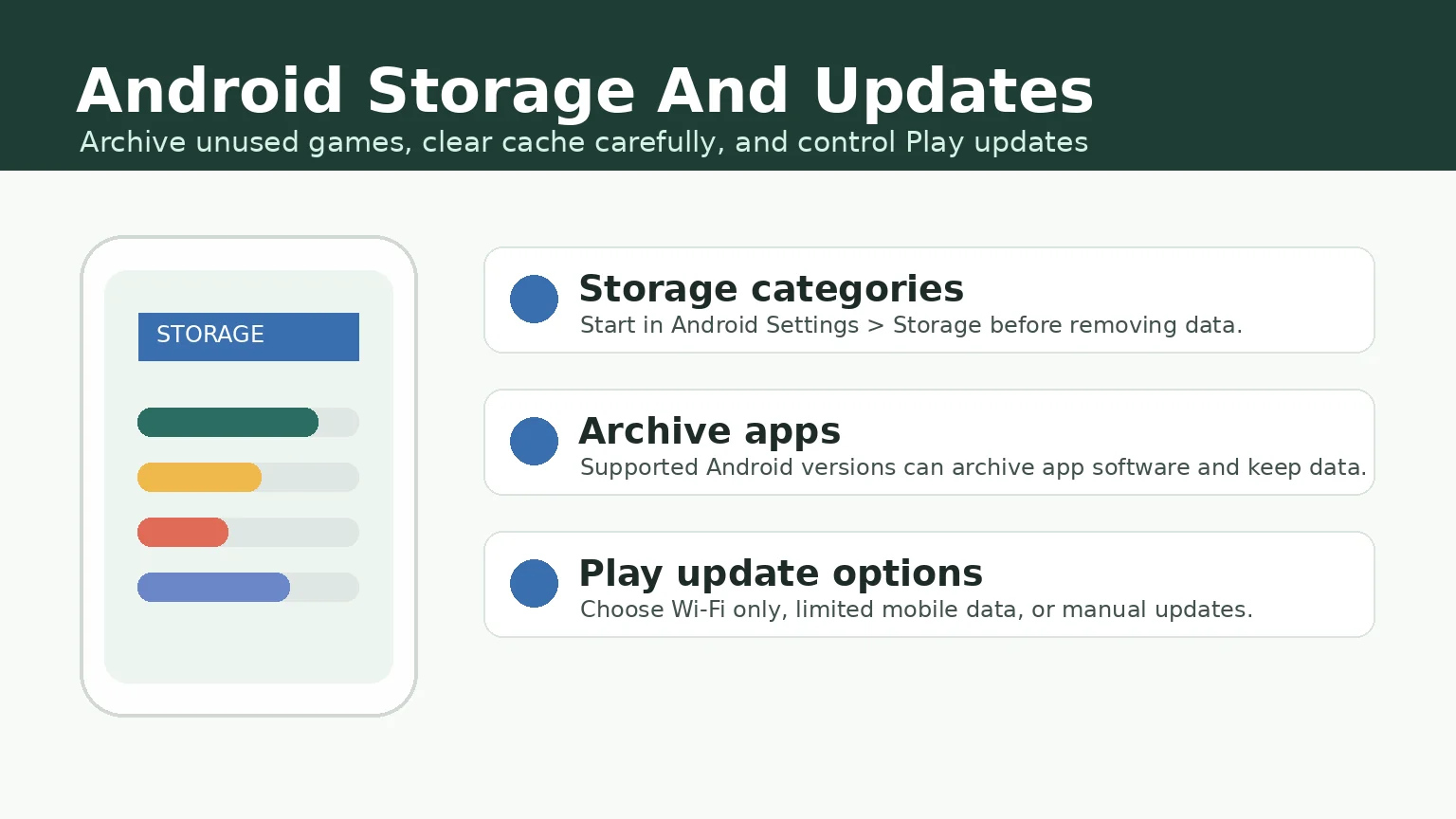
If a game is installed but you do not play it weekly, Android app archiving can be safer than a full uninstall on supported devices. Google’s Google Play archiving help says archiving removes the app software, permissions, temporary files, and notifications while retaining the app icon and data. Some steps require Android 15 or later, so do not assume every phone in the household will show the same option.
Archiving is useful for games you may return to after an event, tournament, or school break. A full uninstall may still be right for games you no longer trust or use, but check the game’s login method first. If progress depends on a platform account, game account, or cloud save, confirm that link before deleting app data. Guest accounts and old offline games are the highest-risk cases.
Control Android updates before a large patch drops
Big games can turn a quiet evening into a forced download. Google Play’s official update help says Android apps can be updated manually, all together, or automatically, with choices that include Wi-Fi or mobile data, limited mobile data, Wi-Fi only, or no automatic updates. It also notes that critical security updates may still happen regardless of settings.
For players in India on limited data packs, the practical choice is usually Wi-Fi only for automatic updates, plus manual checks before you travel or join a ranked session. Open Google Play, review pending updates, and update the games you actually plan to play. If you use a controller or cloud-play setup, pair this with our mobile game controller setup guide so you are not troubleshooting storage and input at the same time.
iPhone: offload unused games instead of deleting everything
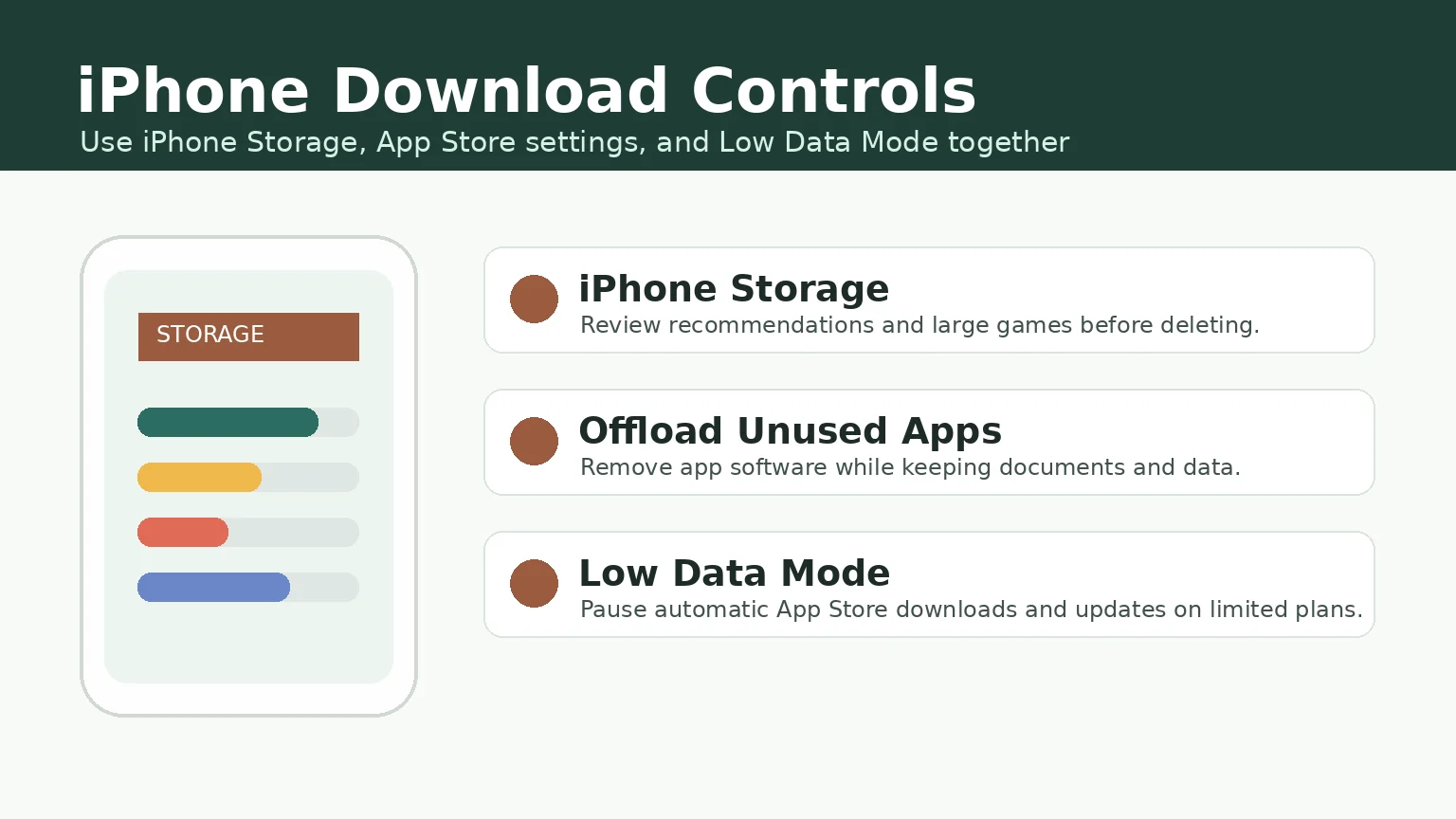
On iPhone, Apple says you can check available space in Settings, General, then iPhone Storage. The same support page says Offload Unused Apps can remove app software while keeping documents and data, with a cloud symbol left on the Home Screen so the app can be reinstalled if it is still available. That makes offloading a better first move than deleting every old game during a storage panic.
Still, offloading is not a promise that every game will restore exactly the way you expect. Games with account login, cloud sync, and platform saves are safer. Games with large optional downloads may need to re-download extra content. Before offloading, open the game once, check the account page, and make sure the progress is tied to a login you can access.
Use App Store and Low Data settings for downloads
Apple’s App Store settings page lists controls for cellular data, app downloads, app updates, in-app content, video autoplay, and Offload Unused Apps. Apple’s Low Data Mode guide also says Low Data Mode can restrict background network use and that App Store automatic updates and automatic downloads are turned off in that mode. For mobile gamers, that is useful before a commute, tournament watch party, or trip where data is limited.
If you want App Store downloads only on Wi-Fi, review Cellular Data and App Store settings together. If you still want a specific game update over mobile data, make that a deliberate one-off choice and check the app size first. Low Data Mode is a guardrail, not a gaming performance mode; turn it off later if it blocks downloads you actually need.
A safe cleanup order for Indian mobile gamers
- Check phone storage first and identify the largest games, videos, screenshots, and chat folders.
- Confirm each important game has a working login, cloud save, or platform account before removing local data.
- Archive or offload games you may return to; fully uninstall games you no longer use.
- Clear cache only when you understand that some games may rebuild temporary files after the next launch.
- Move downloads and updates to Wi-Fi when possible, especially before large event patches.
- Keep one or two regular games updated instead of trying to keep every installed game ready at all times.
This order works well with service-style gaming too. If you use PC or Android cross-play, our Google Play Games on PC setup guide explains another place where storage, sync, and account readiness can overlap.
What not to delete first
Do not start with the game that has your longest account history. Start with recordings, duplicate media, old APK files, and games you can clearly reinstall. Be careful with app data cleanup because each game can handle local files differently. If a game is important, confirm its account status, then take a screenshot of the player ID or support ID before making changes.
Also avoid making third-party cleaner apps your first step. This guide relies on official phone settings and store controls because those are enough for the storage decisions covered here. They also keep the focus on your game account, cloud-save status, and store download settings.
FAQ
Do not treat cache or app data cleanup as risk-free. Some games may rebuild files or ask for downloads after cleanup, so check account login and cloud-save status before using any storage cleanup option on an important game.
For games you may return to, archiving can be better on supported Android versions because it keeps the app icon and data while removing app software and temporary files. A full uninstall is still sensible for games you no longer use.
Apple says offloading removes the app while keeping documents and data, but each game can handle accounts and extra downloads differently. For important games, confirm the login or cloud-save link before offloading.
On Android, review Google Play auto-update preferences and consider Wi-Fi only or manual updates. On iPhone, review App Store cellular settings and Low Data Mode. Check a game’s update size before starting a download away from Wi-Fi.
Written by
Nisha Rao
Payments and Safety Editor
Nisha Rao covers payment notes, KYC guidance, account-safety topics, app usability, and responsible gaming context. She focuses on helping readers understand public information without treating gaming as income or financial advice.
- Expertise
- UPI and wallet notes, KYC explainers, app safety checks, responsible gaming tools, and reader correction review.
- Review scope
- Reviews payment guidance, KYC notes, safety language, responsible-use sections, and correction evidence.