Mobile Game Parental Controls India: Android, iPhone, App Limits, and Purchases
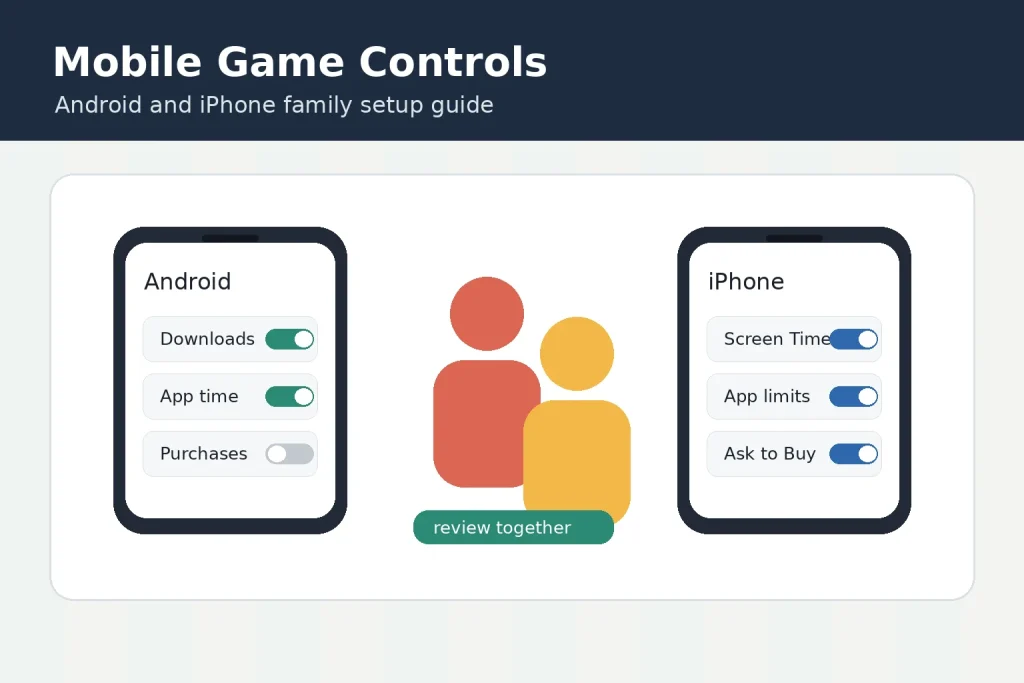
Parents in India usually do not need a separate “gaming safety” app before a child starts playing mobile games. The stronger first step is to set the built-in controls on the store, the child account, and the device itself. That means Google Play parental controls and Family Link on Android, plus Screen Time, Family Sharing, and Ask to Buy on iPhone or iPad.
This guide focuses on the everyday decisions that matter before a child installs or spends inside a mobile game: which age rating is allowed, whether a new game needs approval, how long game apps can run on school days, and what happens when an in-app purchase prompt appears. It is based on official Google and Apple support material checked on 12 June 2026.
What a good mobile game control setup should cover
A useful setup is not just one switch. For a child who plays games on a phone or tablet, cover four layers: store downloads, purchase approval, app time, and account recovery. If only the screen-time limit is active, a child may still install a new game. If only the store rating filter is active, an already-installed game may still absorb too much time.
- Downloads: decide which app and game maturity ratings are allowed before the child browses the store.
- Purchases: require approval for paid downloads and in-app purchases where the platform supports it.
- Daily time: set a realistic weekday and weekend limit for game categories or individual games.
- Exceptions: keep calling, school, transport, and emergency apps outside a broad game limit where needed.
- Receipts: review store receipts and payment alerts after any purchase request is approved.
If purchases are the main concern, pair this setup with the site’s separate in-app purchase receipt checklist. If the concern is age suitability, also review the age-ratings guide for gaming apps.
Android: start with Google Play and Family Link
On Android, start inside Google Play because that is where most children discover and install games. Google’s Google Play parental controls let a parent restrict app and game downloads or purchases by maturity level on that device. Google also warns that these controls do not hide every restricted result from search or a direct link, so the filter should be treated as a gate, not a full supervision system.
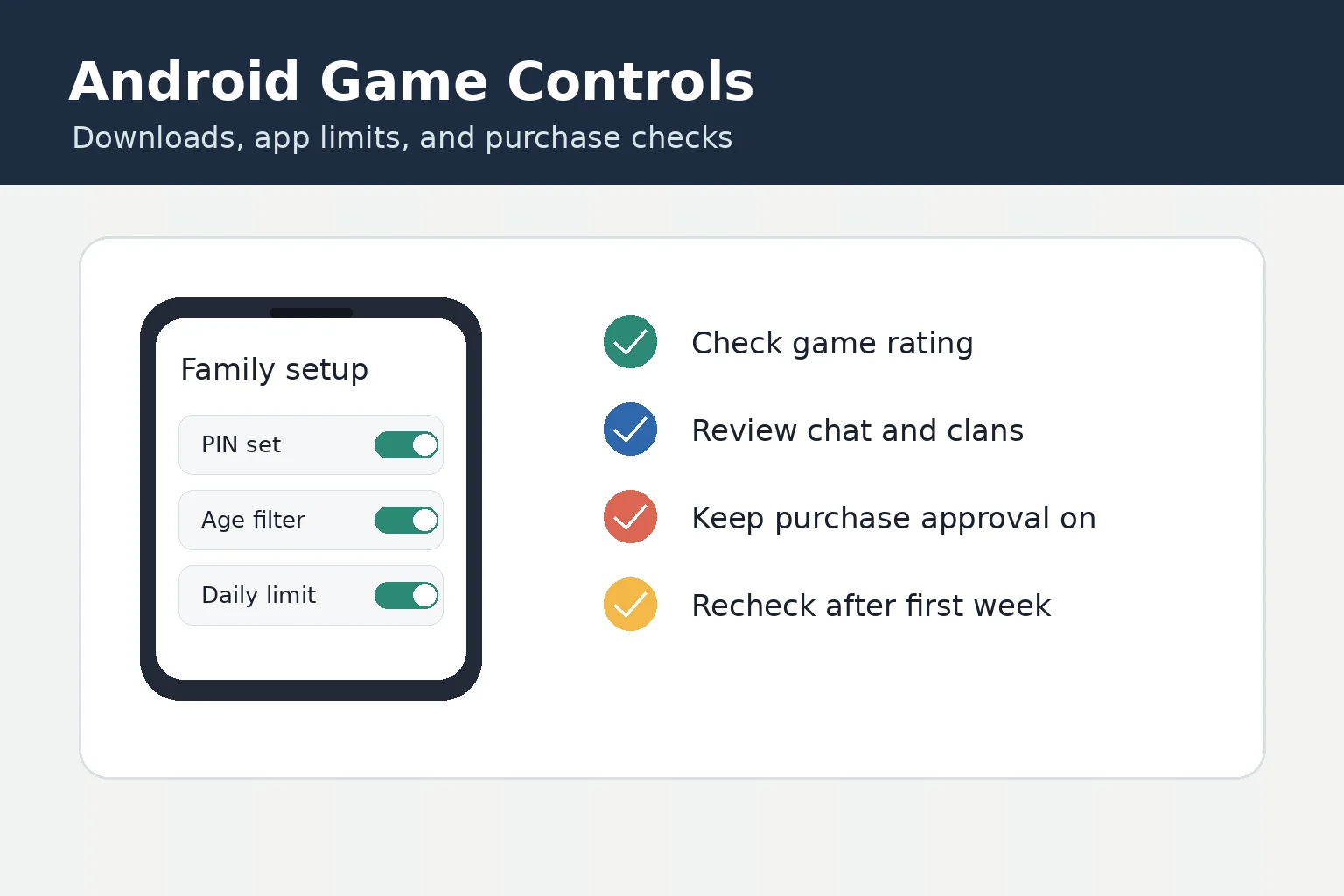
For a child account, add Family Link as the second layer. Google’s Family Link screen-time guidance says parents can set screen-time limits on a child’s Android device or Chromebook and lock the device after a chosen limit or downtime period. Family Link can also limit or block apps on supported devices, although some system or supervision apps cannot be blocked.
A practical Android setup for gaming looks like this: set the Google Play app and game rating level, review the purchase-approval setting, create a weekday game limit in Family Link, then check the child’s installed games one by one. Keep school and calling apps separate from games so a strict game limit does not block necessary use. For a teen who plays competitive games, use individual app limits instead of one blunt device lock if homework, coaching, or travel apps share the same phone.
iPhone and iPad: use Screen Time with Ask to Buy
On iPhone and iPad, Apple’s parental controls sit inside Screen Time and Family Sharing. Apple says Screen Time controls can help manage downloads, purchases, contacts, communication, apps, and other content available to a child. The important sequence is to set up Family Sharing, add the child’s Apple Account, turn on Content & Privacy Restrictions, and then tune the store, app, and purchase controls.
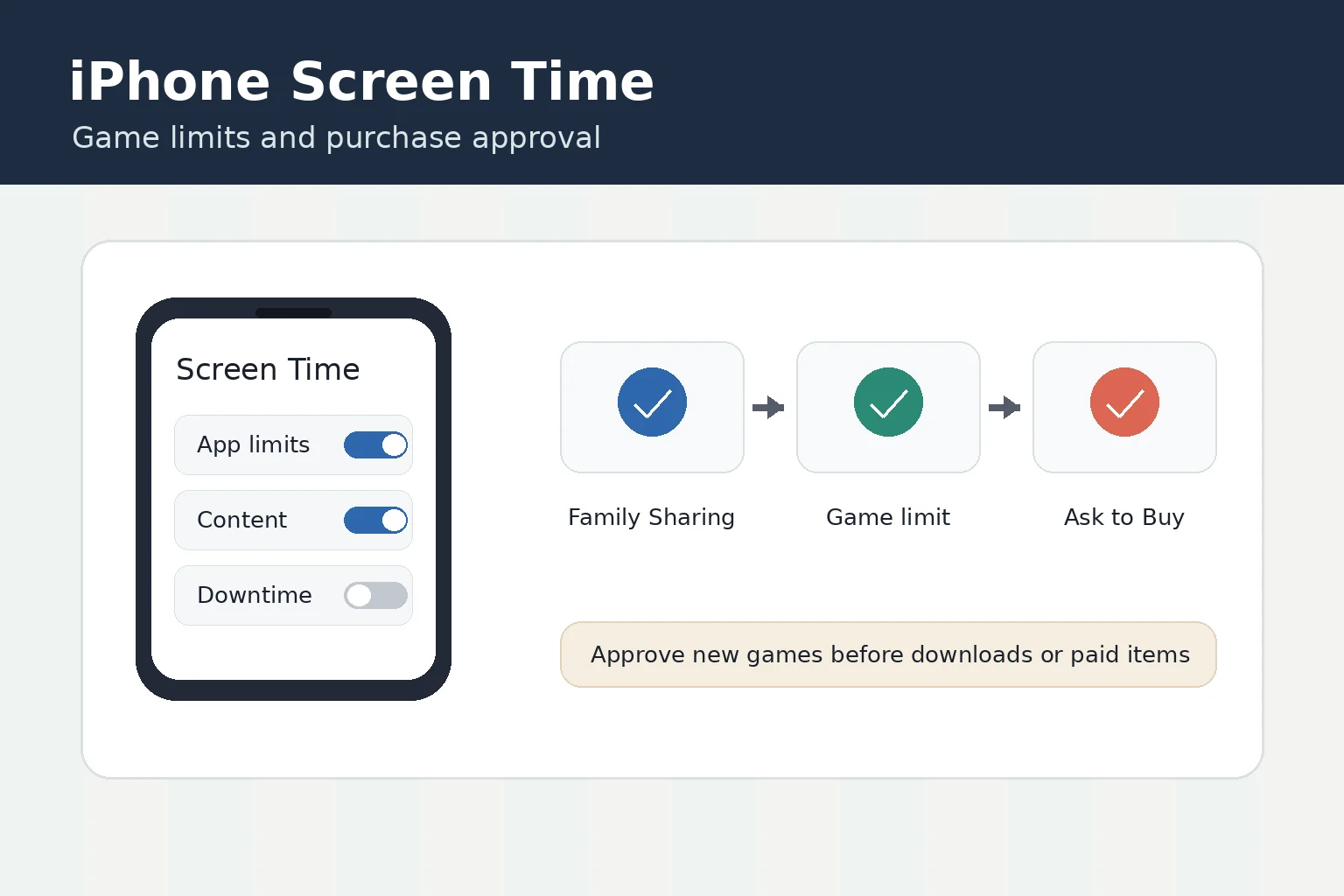
For spending control, Apple’s Ask to Buy is the key setting. When Family Sharing is set up, the family organiser can approve or decline eligible App Store downloads, app purchases, and in-app purchases from their own device. Apple also notes exceptions: updates, redemption codes, and some redownloads may not trigger a request, and default behaviour can vary by country or region and age.
For mobile games, set App Limits for Games or for specific titles that are already installed. Downtime is useful for school nights, but it should not be the only rule because it blocks by schedule rather than by game choice. If a child uses Apple Arcade or other subscription gaming, review the subscription fit separately in the site’s game subscription services comparison so recurring access is not confused with a one-time game download.
India-specific checks before approving a game
Indian households often share devices, cards, UPI-linked payment apps, and family phone numbers. That makes a parental-control setup more practical when it is paired with a short approval routine. Before approving a new game, check the store rating, the game’s in-app purchase label, whether it needs constant internet access, and whether the child understands ads, reward videos, loot-style offers, or social chat features.
- Use one parent-controlled store account or family setup rather than sharing a payment password casually.
- Keep UPI PINs, card OTPs, and wallet passwords outside the child’s reach, even when store approvals are active.
- Review the first week of play after installing a new game; some spending prompts appear only after early progression.
- Discuss voice chat, friend requests, clan invitations, and public usernames for multiplayer games.
- Keep a monthly receipt check for families that use subscriptions, battle passes, or game currency.
What parental controls cannot guarantee
These controls reduce risk, but they do not make every game suitable or every purchase impossible. Platform controls depend on the account, device, region, store billing route, and app behaviour. A web payment, a code redeemed outside the normal store flow, a shared family device, or a parent’s unlocked phone can bypass the neat version of the setup.
That is why the best routine is active and boring: approve games deliberately, check receipts, revisit limits after exams or holidays, and remove games that push too hard on spending or late-night play. For younger children, the safest default is no unsupervised purchases and short, predictable game windows. For older teens, explain the reason behind limits so they do not become just another setting to work around.
Quick setup order
- Set up the child’s account properly: Family Link for Android or Family Sharing for Apple devices.
- Turn on store rating controls before installing the next game.
- Turn on purchase approvals and test one free download request so the parent knows where alerts appear.
- Create weekday and weekend app limits for games.
- Check already-installed games for chat, ads, in-app purchases, and account sign-in.
- Review receipts and screen-time reports after seven days, then adjust the limits.
No. Google Play controls help with store downloads and maturity-level restrictions, but parents should also use Family Link app limits, purchase checks, and receipt reviews because store filters do not cover every route into a game.
Ask to Buy helps a family organiser approve or decline eligible App Store downloads and in-app purchases, but Apple lists exceptions such as some updates, redemption codes, and redownloads. Parents should still review receipts and payment alerts.
Start with the child’s account and store controls: Family Link plus Google Play controls on Android, or Family Sharing plus Screen Time on iPhone. Then add purchase approval and app time limits before approving new games.
Written by
Rohan Iyer
Brand Research Editor
Rohan Iyer researches online BC brand profiles, app availability, public terms, customer support notes, and market updates for India Game Radar. His work prioritises public-source checks and visible disclosure of uncertainty.
- Expertise
- Brand profiles, betting app research, public terms, support notes, market updates, and affiliate disclosure context.
- Review scope
- Reviews brand profiles, public app information, market updates, affiliate disclosures, and source-based corrections.