Mobile Game Cloud Saves India Guide: Android, iPhone, and Account Transfer Checks
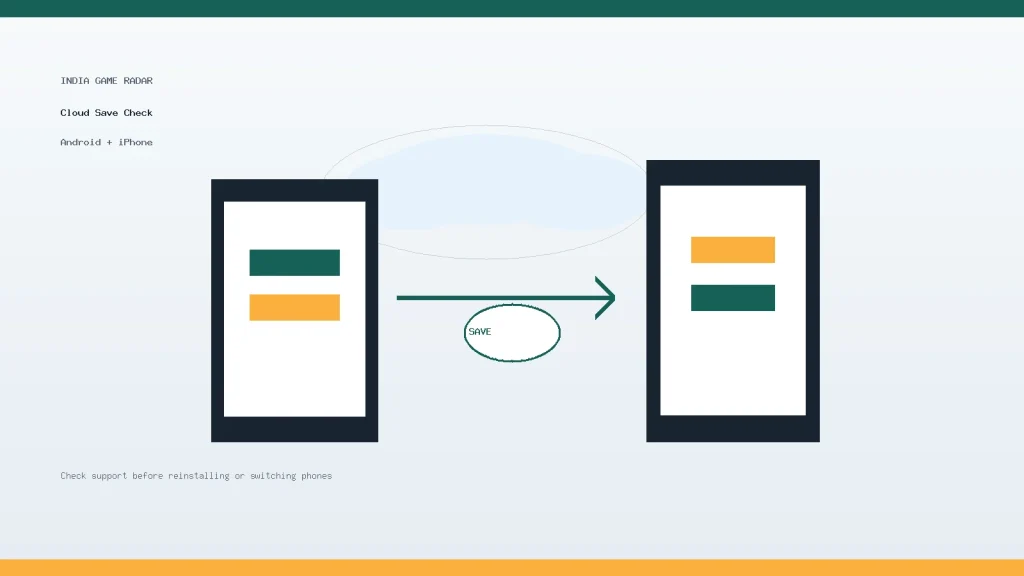
Changing phones should not mean losing a season pass, a ranked climb, or years of casual progress. The difficult part is that mobile game cloud saves are not controlled by one switch. Android, iPhone, Google Play Games, Game Center, iCloud, and the game publisher can all matter, and each game decides how much it supports.
This India-focused guide explains what to check before you reinstall a game, move from Android to iPhone, move from iPhone to Android, or hand an old phone to someone else. It is based on official Google Play, Android Developers, and Apple Support guidance checked on 11 June 2026, with practical steps for players rather than a developer-only explanation.
If you are setting up a wider gaming device workflow, keep this guide alongside our Google Play Games on PC India setup guide, Apple Arcade India guide, and mobile game controller setup guide.
Quick Answer
On Android, some supported games can restore progress through Google Play Games when you sign in with the correct Google Account. Google’s own help page also makes the key limitation clear: not every game automatically saves progress, so the game itself must support the feature or offer its own account login.
On iPhone, supported games can use iCloud and Game Center to keep progress current across Apple devices. Apple says the account check matters: the same Apple Account should be used for iCloud and Game Center on each device.
For Android-to-iPhone or iPhone-to-Android moves, do not assume Google Play Games and Game Center can exchange saves directly. Treat cross-platform transfer as a game-by-game question. If the game has a publisher account, email login, social login, player ID, or in-game account-link option, that is usually the first thing to verify before you reset or sell the old phone.
| Move | Main thing to check | Risk level |
|---|---|---|
| Android to Android | Correct Google Account, Play Games profile, and supported game save | Medium |
| iPhone to iPhone | Same Apple Account for iCloud and Game Center | Medium |
| Android to iPhone | Publisher account or in-game transfer support | High |
| iPhone to Android | Publisher account or in-game transfer support | High |
How Android Game Saves Usually Work
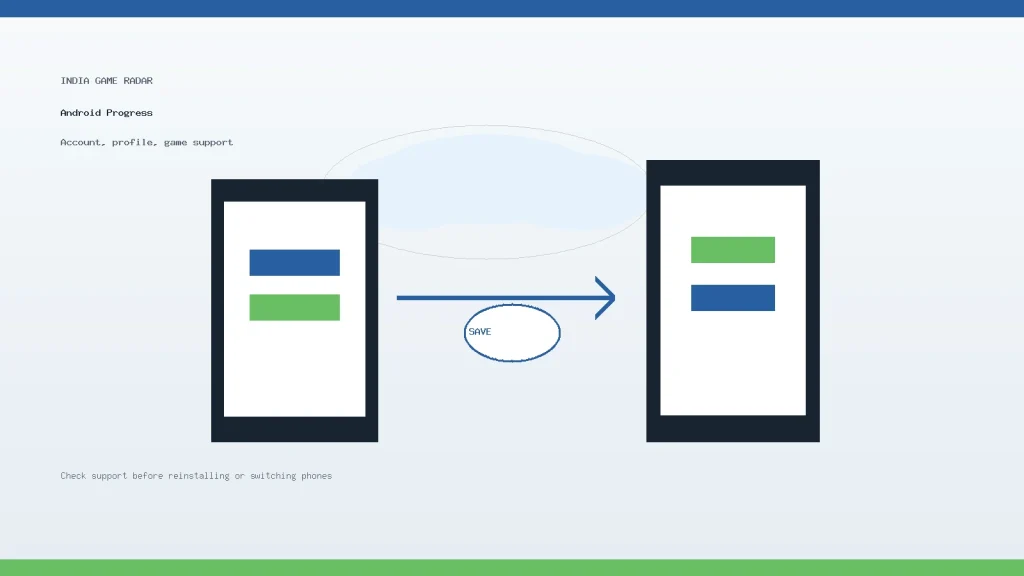
For Android players, the first check is the account. Open the game, look for the account, profile, login, or cloud save section, and confirm which Google Account or publisher account is connected. If the game shows achievements or leaderboards, that can be a clue that the game is using Google Play Games features, but it is not a promise that every save file is portable.
Google Play Help advises players with missing progress to check the game detail page, open the game again, and make sure they are signed in to the same account that held the progress. Its separate Play Games profile guidance says supported games can use a Google-linked gaming profile for achievements, leaderboards, playing across Android devices or computers, and automatic saves. Those details support a useful rule: if the wrong Google Account opens after reinstall, the game may look like it has started from zero.
The developer side matters too. Android Developers describes cloud save as something a game must implement so player state can be saved and retrieved later. That means two games on the same phone can behave differently. One may restore instantly after reinstall. Another may keep progress only on the device, inside a publisher account, or not at all.
- Before uninstalling, open the game settings and look for account link, cloud save, or restore progress options.
- Check whether the game uses Google Play Games, a publisher account, Facebook, email, phone number, or another login.
- Take screenshots of the player ID, server, username, and support code before changing devices.
- Install only the official Play Store version on the new device so account linking behaves predictably.
- Open the game on the new phone while the old phone is still available, then confirm progress, purchases, inventory, and rank.
For official Android-side background, use Google’s restore guidance through Google Play Games restore progress checks and the developer implementation note on Android cloud save implementation.
How iPhone and Game Center Saves Work
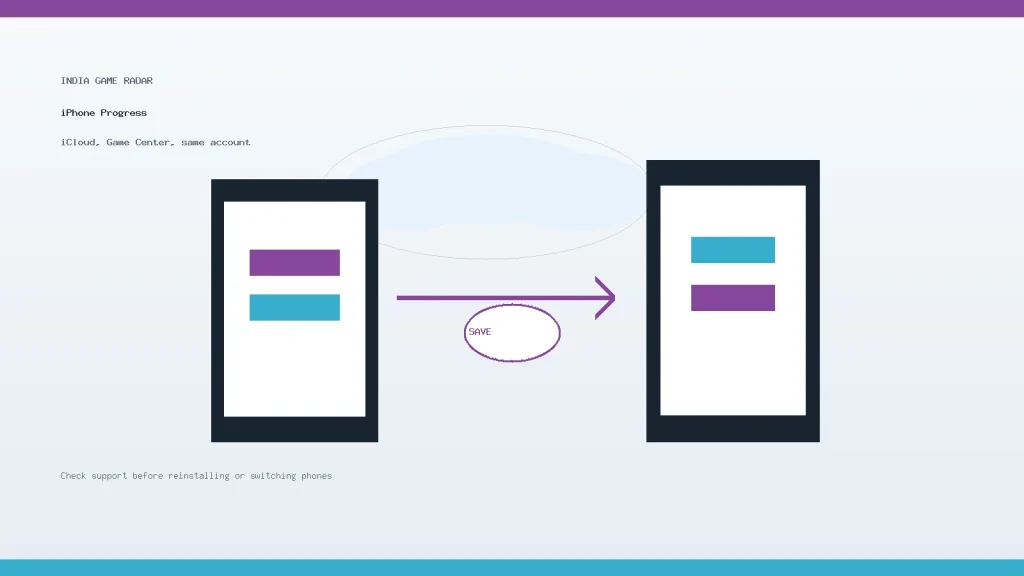
For iPhone, iPad, Mac, Apple TV, and Apple Vision Pro players, Apple’s player-facing support page says supported games can use iCloud and Game Center to keep progress, scores, and saves up to date across devices. The word supported is important. Game Center can help, but it does not make every game portable automatically.
Before moving to a new Apple device, check that the old and new devices use the same Apple Account for iCloud and Game Center. On iPhone or iPad, go to Settings, check iCloud sign-in, then check Game Center. If a family member’s Apple Account is signed into Game Center, a game may show the wrong profile even when the App Store download looks correct.
Apple’s developer information also shows that Game Center is a game feature developers integrate for identity, leaderboards, achievements, multiplayer, and related experiences. In practice, this means the best transfer test is inside the game: open the same game on the new Apple device, confirm the profile name, and verify that the current level, currency, items, or subscription state is visible before deleting data from the old device.
For Apple’s official player checklist, see Apple Game Center and iCloud progress checks.
Android to iPhone: What Usually Blocks Transfer
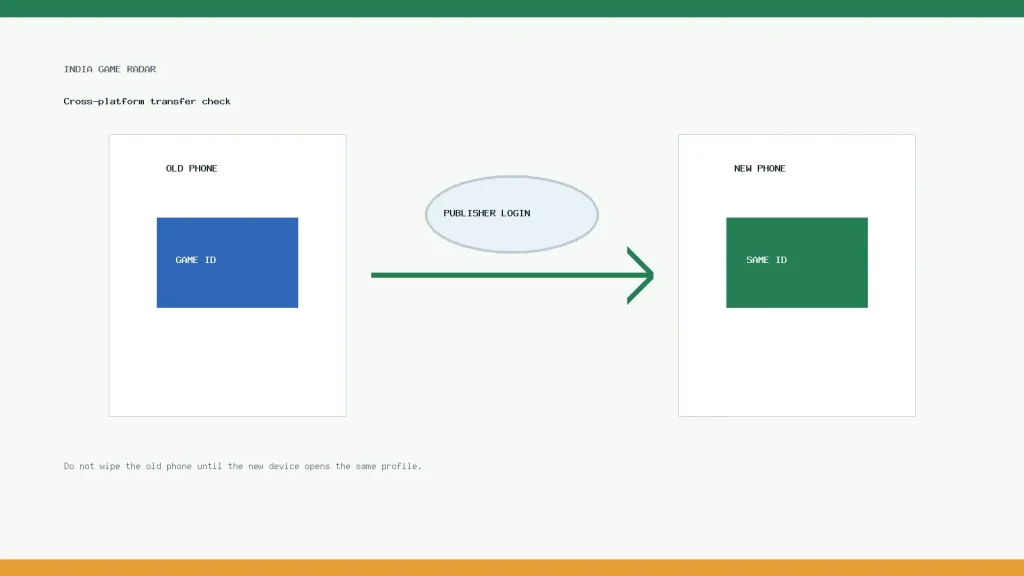
The hardest move is between platforms. Google Play Games and Game Center are separate ecosystems, so a save connected only to Google Play Games may not automatically appear on iPhone. The reverse is also true for a save connected only to Game Center or iCloud. A game can still support cross-platform progress, but that usually depends on a publisher-controlled login inside the game.
Before you switch, open the game and check for login methods such as a publisher account, email, phone number, Facebook, Apple sign-in, Google sign-in, or a transfer code. Read the in-game support page for that exact title. Do not rely on a YouTube comment, APK mirror note, or unofficial Discord message if the account has paid items or ranked progress attached.
If the game shows region, server, or platform locks, write them down. Some games separate Android and iOS purchases, some separate servers, and some allow progress but not every item type to move. India players should be especially careful before changing the account tied to UPI, card, or subscription receipts because store-level purchase records may not equal in-game progress recovery.
A Safer Transfer Checklist
- Update the game on the old device first, then open it once on a stable connection.
- Confirm the active login method and screenshot the account page.
- Record player ID, region, server, guild, clan, and support code if shown.
- Check whether cloud save is enabled or whether the game asks for manual account linking.
- Install the official store version on the new phone and sign in with the same account.
- Compare profile, level, inventory, friends, ranked history, and purchases before wiping the old phone.
- If anything is missing, stop playing on the new blank profile and contact official game support with screenshots.
This checklist is also useful when reinstalling after a repair or factory reset. A reset can be safe when the save is truly cloud-backed, but it is risky when the game uses local-only progress or when the player cannot prove which account was attached.
Who Should Be Most Careful
Casual players with no purchases and no long-term progress can usually test a reinstall with lower risk. Competitive players, parents managing a child’s device, players with old accounts, and players who spent money should slow down. If the account has rare items, event rewards, battle pass progress, esports rank, or real purchase history, treat the old phone as the backup until the new phone shows the same account state.
The safest decision is simple: never delete the old install, unlink an account, reset a phone, or change a login method until the new device has opened the same profile successfully. Cloud saves are useful, but they are not a guarantee for every mobile game.
No. Google Play Games can help supported games save and restore progress, but not every game autosaves. Check the game’s own account or cloud-save settings before reinstalling.
Not by itself. Game Center and iCloud are Apple services. Android transfer usually needs the game publisher’s own account, transfer code, or cross-platform login support.
Save screenshots of the player ID, account page, server, region, purchase receipts, and support code. Keep the old phone available until the new phone shows the same progress.
Using the official store reduces app-version and security risk, but it does not guarantee progress recovery. The game still needs a supported cloud save or linked account.
Written by
Nisha Rao
Payments and Safety Editor
Nisha Rao covers payment notes, KYC guidance, account-safety topics, app usability, and responsible gaming context. She focuses on helping readers understand public information without treating gaming as income or financial advice.
- Expertise
- UPI and wallet notes, KYC explainers, app safety checks, responsible gaming tools, and reader correction review.
- Review scope
- Reviews payment guidance, KYC notes, safety language, responsible-use sections, and correction evidence.