Mobile Game Notification Settings India: Android Do Not Disturb, iPhone Focus, and Match Alerts
A practical India-focused setup guide for Android Do Not Disturb, Android Game Dashboard, and iPhone Focus so mobile players can reduce interruptions without missing important alerts.
A good mobile game notification setup is not just “turn everything off.” For Indian players who jump between ranked matches, party chat, downloads, family calls, and school or work groups, the better setup is a short gaming mode that keeps only the alerts that matter during play.
This guide focuses on Android Do Not Disturb, Android app-notification controls, Android Game Dashboard, and iPhone Focus. It is meant for players who want fewer pop-ups over the screen, fewer accidental taps during matches, and a cleaner pre-game routine without losing important contact alerts.
Quick Verdict
Use a dedicated gaming mode if your phone supports it. On Android, start with app notification controls and Do Not Disturb, then use Android Game Dashboard where available for gaming-specific shortcuts. On iPhone, create a Focus that allows only the people and apps you need during a match, using Apple’s Focus notification controls as the baseline.
The aim is simple: let party chat, tournament messages, or family calls through when they matter, while muting shopping apps, promotional game pings, social feeds, and routine reminders until the session ends.
Before You Change Settings
- Decide what must reach you during a live match: family calls, team voice chat, tournament app messages, or download-complete alerts.
- Separate those from low-priority alerts: app promos, creator uploads, store offers, social reactions, and inactive game reminders.
- Use a time-limited mode for match sessions instead of a permanent all-day block.
- Test the setup before a ranked game or paid event. Menus can vary by Android version, phone maker, and iOS version.
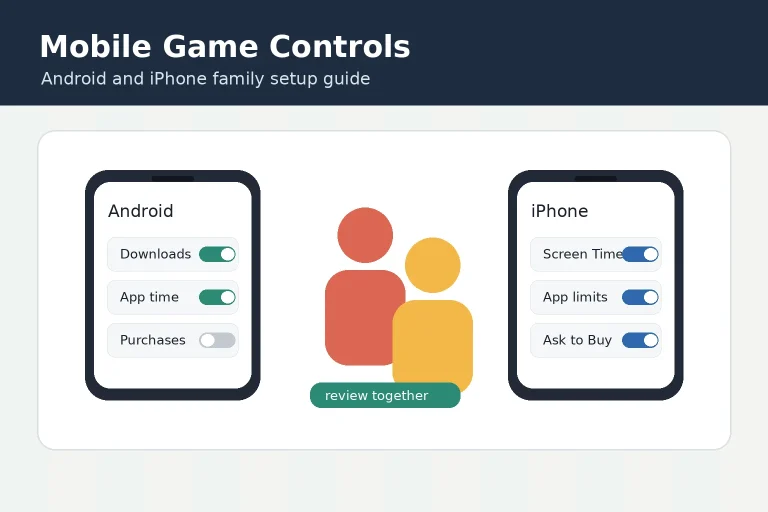
If the same phone is also used by a child, check the broader mobile game parental controls guide before changing alerts. Notification rules should support the family setup, not bypass it.
Android Setup
Android gives you two useful layers. First, you can control notifications for individual apps or for the whole phone. Google’s Android Help explains that notification settings can be changed per app, and that some notification history and menu options vary by device and Android version. Use that app-level control to quiet noisy games, shopping apps, short-video apps, and social feeds before they interrupt a match.
Second, use Android Do Not Disturb or Modes for a match window. A practical gaming profile can allow starred contacts, calls from repeat callers, or selected chat apps, while silencing low-priority banners. Keep it easy to turn off from Quick Settings so you do not miss messages after play.
On supported phones, Android Game Dashboard can make this less fiddly because it appears over a running game and includes shortcuts such as screenshots, screen recordings, Do Not Disturb, and Game Mode options. Do not assume every Android phone has the same dashboard. Some brands use their own game booster, game space, or performance panel, so look for equivalent controls rather than identical menu names.
iPhone Focus Setup
On iPhone, Focus is the cleaner route than manually muting each app before every session. Apple describes Focus as a way to minimize distractions by silencing all notifications or allowing only selected notifications. For gaming, create a Focus that allows your key contacts and any apps you actually need while playing.
A sensible iPhone gaming Focus usually allows family contacts, one party-chat or community app, and the game itself if match or event alerts are important. Silence social feeds, shopping apps, and games you are not playing. If Do Not Disturb keeps turning itself on later, check the schedule attached to that Focus so an old routine does not block alerts at the wrong time.
Players who use console companion apps, cloud gaming, or a controller should keep their setup connected to the rest of the device routine. The mobile game controller setup guide is useful if your session depends on Bluetooth pairing, controller batteries, or console app prompts.
Alert Rules By Player Type
| Player situation | Keep on | Mute during play |
|---|---|---|
| Ranked mobile game | Team chat, family calls, tournament messages | Promos, inactive games, creator feeds |
| Casual puzzle or runner game | Family calls, download alerts if needed | Most social and shopping notifications |
| Cloud or controller session | Console app, controller or party-chat alerts | Non-gaming apps and background game reminders |
| Child or shared phone | Parent contact alerts and family controls | Unapproved chat or spending prompts |
These rules are intentionally conservative. A notification mode should reduce clutter; it should not hide account warnings, family contact alerts, or event messages that are part of the session. If you already tuned display, battery, and game mode settings, connect this notification setup with the mobile game performance settings guide so both routines are easy to run before play.
A Short Pre-Match Routine
- Open the game and confirm the match, event, or party-chat app you need.
- Turn on the Android Mode, Android Do Not Disturb, Android Game Dashboard shortcut, or iPhone Focus you prepared.
- Check that your allowed people and apps are still allowed after system updates.
- Play one casual round or wait for a test message before using the setup in ranked play.
- Turn the mode off after the session if it is not scheduled to end automatically.
What This Will Not Fix
Notification settings cannot fix server lag, weak Wi-Fi, low storage, or an overloaded phone. They also cannot stop every overlay from apps that use their own floating controls. Treat the setup as an interruption-control layer, not a performance guarantee.
The best result is a phone that feels calmer during play. You should still see the game clearly, hear your team, and receive the contacts or app alerts you deliberately allowed. Everything else can wait until the match ends.
No. A better setup is to allow important contacts, team-chat apps, or tournament alerts while muting low-priority apps during the session.
No. Android Game Dashboard and similar gaming panels vary by Android version and device maker. Use equivalent Do Not Disturb, game mode, or notification controls if the exact dashboard is not available.
Yes. Apple Focus can allow selected people and apps, so players can keep family contacts, party chat, or a specific game app available while silencing unrelated notifications.
Written by
Rohan Iyer
Brand Research Editor
Rohan Iyer researches online BC brand profiles, app availability, public terms, customer support notes, and market updates for India Game Radar. His work prioritises public-source checks and visible disclosure of uncertainty.
- Expertise
- Brand profiles, betting app research, public terms, support notes, market updates, and affiliate disclosure context.
- Review scope
- Reviews brand profiles, public app information, market updates, affiliate disclosures, and source-based corrections.