Key Facts
- Brand
- BlueStacks Review India: Android Games on PC, Controls, and Emulator Fit
- Rating
- Not rated
- BC Topic
- Mobile Gaming
- Website Action
- Official Site
Quick verdict: BlueStacks is a practical Android-games-on-PC option for Indian players who want a bigger screen, keyboard controls, controller support, or a spare way to play mobile games while the phone is charging. It is not a magic performance upgrade, and it is not the same thing as an official PC version of every game. Treat it as an emulator-style gaming tool: useful for many casual, RPG, strategy, and action games, but worth checking against each game’s own account and emulator rules before you invest time in a new setup.
This review is based on public official sources checked on 16 June 2026. India Game Radar did not run a benchmark, log in to a private BlueStacks account, buy BlueStacks Prime, test paid checkout, or verify support response times. The main question here is simple: does BlueStacks fit the way an Indian player actually plays mobile games on a PC?
What BlueStacks Does
BlueStacks positions itself as an Android emulator and cloud gaming platform for PC, Mac, and instant cloud play. In plain terms, it lets you run Android games on a desktop or laptop environment instead of only on a phone. That can make sense if your phone overheats, you prefer keyboard controls for shooters or action games, or you want a larger screen for RPG menus, strategy maps, and long sessions.
The strongest use case is not every mobile game. It is games where a PC screen and mapped controls genuinely help: movement-heavy action games, city builders, RPG inventory management, auto-battlers, and games where you want to chat, stream, or keep other tabs open. If a game already has a polished PC client, or if the publisher restricts emulator use, the official PC route is the better first stop.
Official Install Path And Requirements
Use the official BlueStacks download page rather than mirror sites or bundled installer pages. The public download page lists BlueStacks 5 Windows builds across Android versions such as Nougat, Pie, Android 11, and Android 13 beta, plus macOS options. The setup notes say users can download the installer, follow the on-screen setup, and sign in with a Gmail account during first boot or later.
The more important check is hardware fit. BlueStacks Support lists minimum requirements including an Intel or AMD processor, at least 4GB RAM, 5GB free disk space, administrator rights, and updated graphics drivers. Its recommended guidance is stricter: Windows 10 or above, 8GB or more RAM, SSD storage, broadband internet, updated graphics drivers, and virtualization enabled. Check the official system requirements before installing it on an older school, office, or family PC.
Controls, Game Fit, And Multi-Instance Use
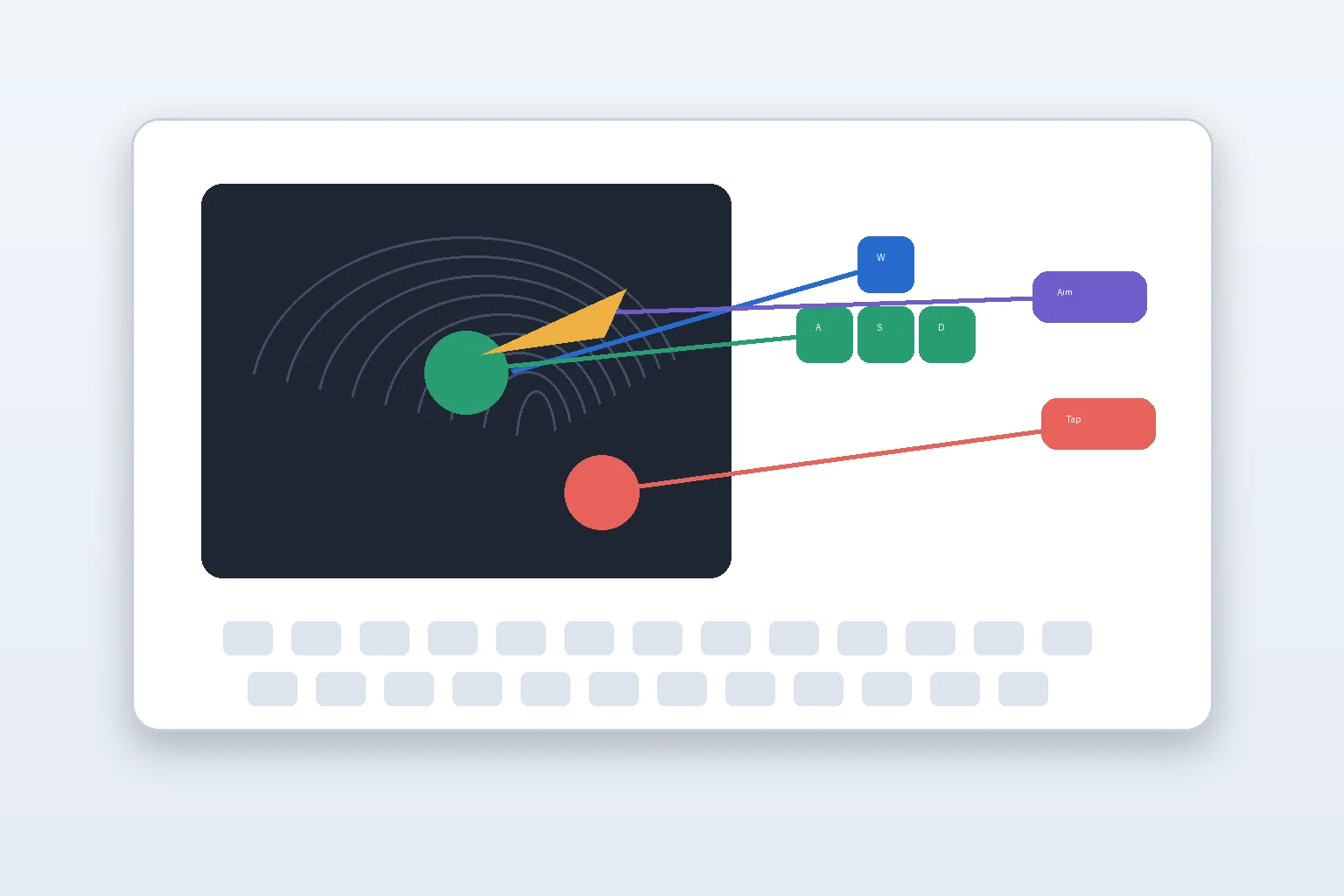
Controls are the main reason to consider BlueStacks over simply casting a phone screen. BlueStacks Support documents a Controls editor for viewing, creating, and editing game controls and keymapping. For Indian players, that matters most in games where touch buttons crowd the phone screen or where keyboard movement feels more stable than dragging on glass.
The practical test is whether the game is comfortable after ten minutes, not whether the feature list is long. Try a training mode, casual match, or low-stakes stage before using a new control scheme in ranked play. For controller-first players, compare the experience with your usual mobile setup and with our mobile game controller setup guide so you know whether Bluetooth pairing or native gamepad support is the cleaner route.
BlueStacks also documents a Multi-instance Manager. That can help players separate games, Android versions, or accounts, but it needs care. Multiple instances use more RAM and CPU, and some game publishers dislike multi-account farming or emulator automation. Use it for organization and compatibility first. Do not assume it is allowed for competitive advantage, event farming, or account duplication.
Performance, Storage, And Mobile Data Fit
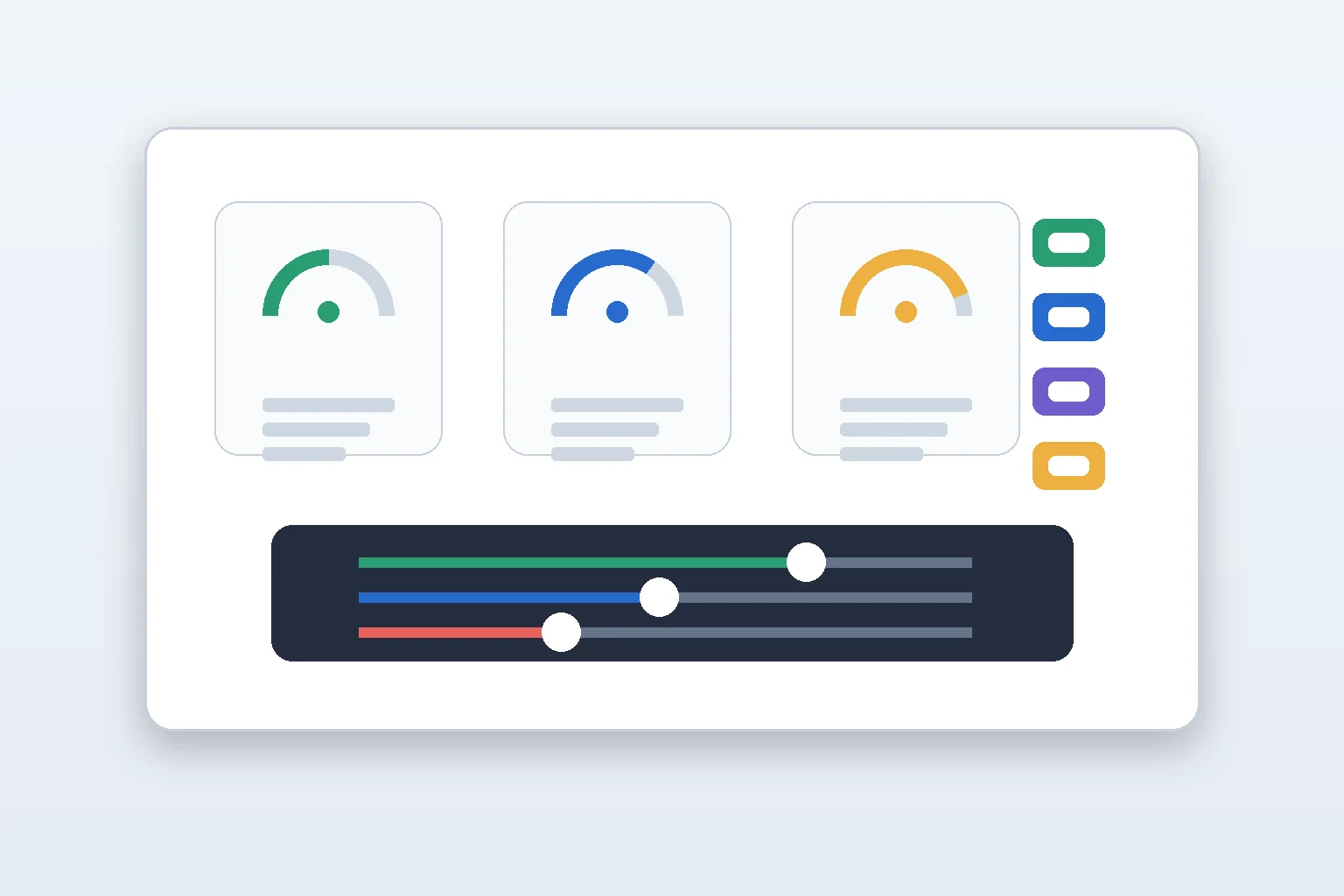
BlueStacks is most convincing on a PC with enough memory, SSD storage, and stable broadband. On low-RAM systems, it can compete with browsers, Discord, recording software, and background launchers. BlueStacks Support describes Low Memory, Balanced, and High Performance modes, with Low Memory suggested for 8GB RAM or less or many instances, Balanced for 8GB to 16GB while multitasking, and High Performance for PCs above 16GB RAM when BlueStacks is the focus.
Before installing several large games, clear space and decide which device should own your main account progress. Our mobile game performance settings guide covers the phone side of the same decision: sometimes a cleaner phone setup beats moving the game to a PC emulator.
Pricing, Prime, And Account Boundaries
The core BlueStacks download is presented as an app player, while BlueStacks Prime is described by BlueStacks Support as a monthly premium membership. The public Prime support page lists benefits such as ad-free use, monthly rewards, extra savings on eligible purchases, and priority support, with a listed price of $4.99 and a note that Prime is available only in select regions. It also says Prime subscription refunds are not available. Check the current Prime page before assuming an India price, payment route, or refund option.
BlueStacks itself is not a real-money gaming operator. No deposit, withdrawal, or gaming KYC flow was identified in the official BlueStacks sources reviewed for this article. That does not remove the rules of the games you install. In-game purchases, subscriptions, refunds, bans, cloud saves, and parental controls remain tied to the game publisher, Google account, store account, or now.gg/BlueStacks account involved.
Who Should Use BlueStacks
- Good fit: players with a Windows 10 or newer PC, 8GB or more RAM, stable broadband, and games that benefit from keyboard, mouse, controller, or bigger-screen play.
- Use with caution: players on low-storage laptops, shared family PCs, school or office machines, or games with unclear emulator/account rules.
- Probably skip: players who only need official PC games, cloud saves across Android and PC through Google Play Games, or a lightweight phone-only setup. Start with our Google Play Games on PC guide if you want Google’s first-party PC route.
Final Take
BlueStacks is worth shortlisting when your goal is Android gaming on a PC with better controls and a larger screen. Its best value is practical, not magical: official installation, enough PC resources, careful control setup, and respect for game-specific rules. For Indian players, the cleanest approach is to install only from the official route, test one game first, avoid account shortcuts, and keep purchases or Prime decisions separate from the basic emulator trial.
BlueStacks can be downloaded from the official BlueStacks website, and this review checked public official sources on 16 June 2026. Feature, Prime, game, and payment availability can vary by region, device, account, and game publisher.
No. BlueStacks can help when a PC has enough RAM, SSD storage, updated drivers, and suitable controls, but performance still depends on the PC, game, graphics settings, network, and background apps.
No public official source reviewed for this article said Prime is required for basic BlueStacks use. BlueStacks describes Prime as a monthly premium membership with extra benefits, select-region availability, and subscription terms that users should check before paying.
Only if the game publisher allows emulator use and the setup is stable enough for competitive play. Check the game’s own rules first, test controls in low-stakes modes, and avoid multi-account or automation behavior that may breach game terms.
Important Notice
India Game Radar is an independent information website for adult readers. We do not operate betting or casino services, accept deposits, process withdrawals, manage player accounts, or provide access to real-money gaming. Always check official terms, local laws, and age requirements before using any third-party website.